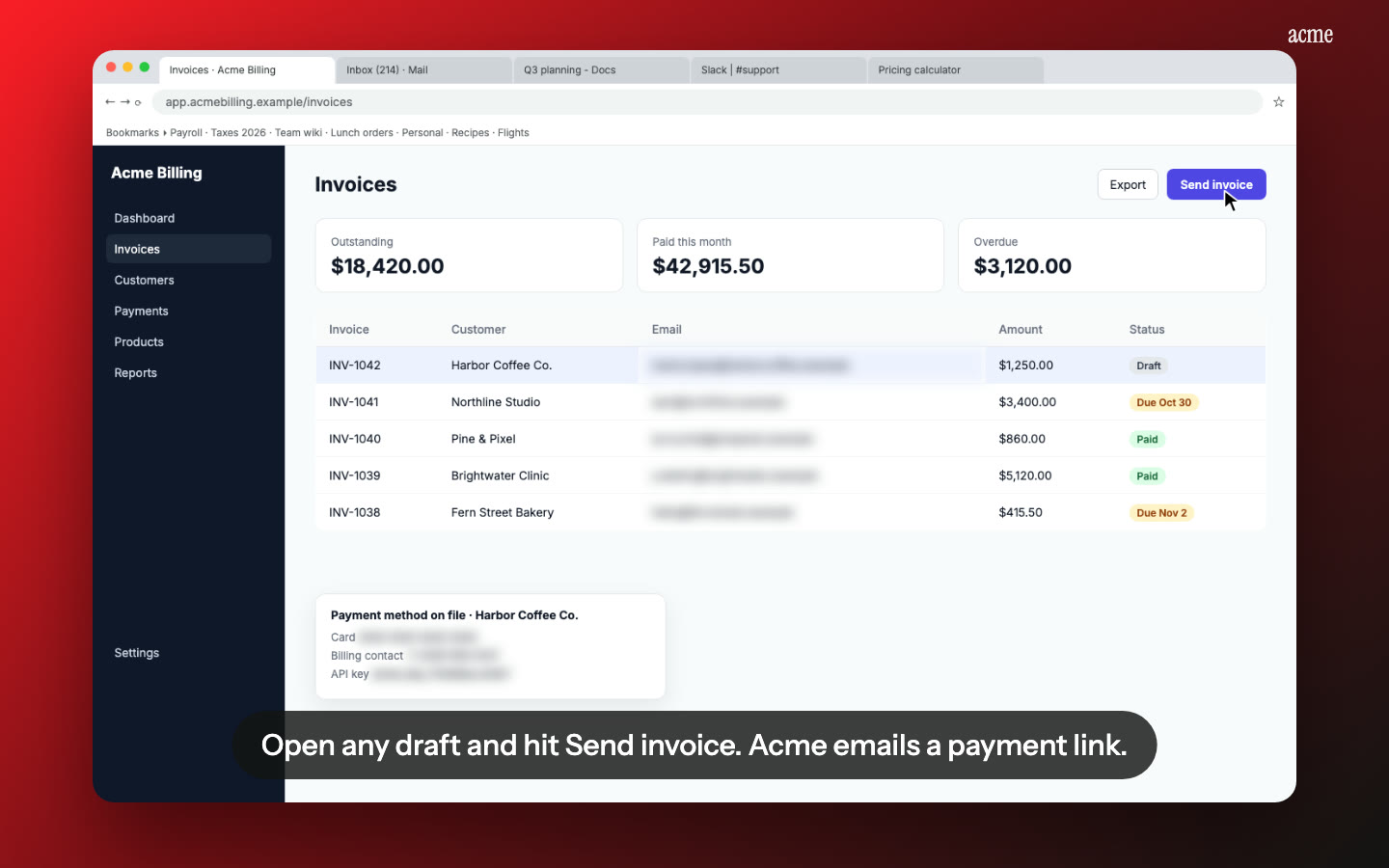
What Nook does
Nook turns an existing screen recording into a narrated product demo video. Upload an MP4, MOV or WebM up to 15 minutes. Nook splits it into steps, writes one script line per step, adds an AI voiceover or tidies your own, times captions to every line, blurs private data and renders a video you can share, embed or download.
There's no recorder to install and no timeline to learn. Record with whatever you already use, QuickTime, the Windows Snipping Tool, OBS, Zoom or a Loom download, and upload the file.
How it works
- Record your screen the way you normally would. Click through the product once. Talk if you want to, or stay silent. A recording from any tool works, as long as it's MP4, MOV or WebM and under 15 minutes.
- Upload it to Nook. Drop the file into the app. Nothing to install in your browser.
- Nook finds the steps. If you talked, Nook uses your narration to decide where one step ends and the next begins. If you were silent, a vision model reads the frames and works out what happened on screen.
- Nook writes the script. You get one short, plain line per step. Every line is editable. Cut a step, skip one, or rewrite it in your own words.
- Pick the voice. Choose a natural AI voice and a pace, keep your own voice with the ums, silences and dead time cut, or go captions only.
- Add your brand. Logo, accent color, intro and outro cards, a background (including a mesh gradient), built-in background music and a clean frame around the screen.
- Render and share. Nook renders the video and gives you a share page with chapters, an embed code and an MP4 download. Change anything and re-render.
Most of the work is in steps 3 and 4, which is the part that usually takes an afternoon of editing. Our guide to making a product demo video covers what to show and in what order, and the demo video script guide covers how to word each line.
What you get from one recording
A narrated demo video. Your recording with a script, a voice, captions on every line and the waiting cut out. Captions mean it still works when someone watches on mute in a feed or an inbox.
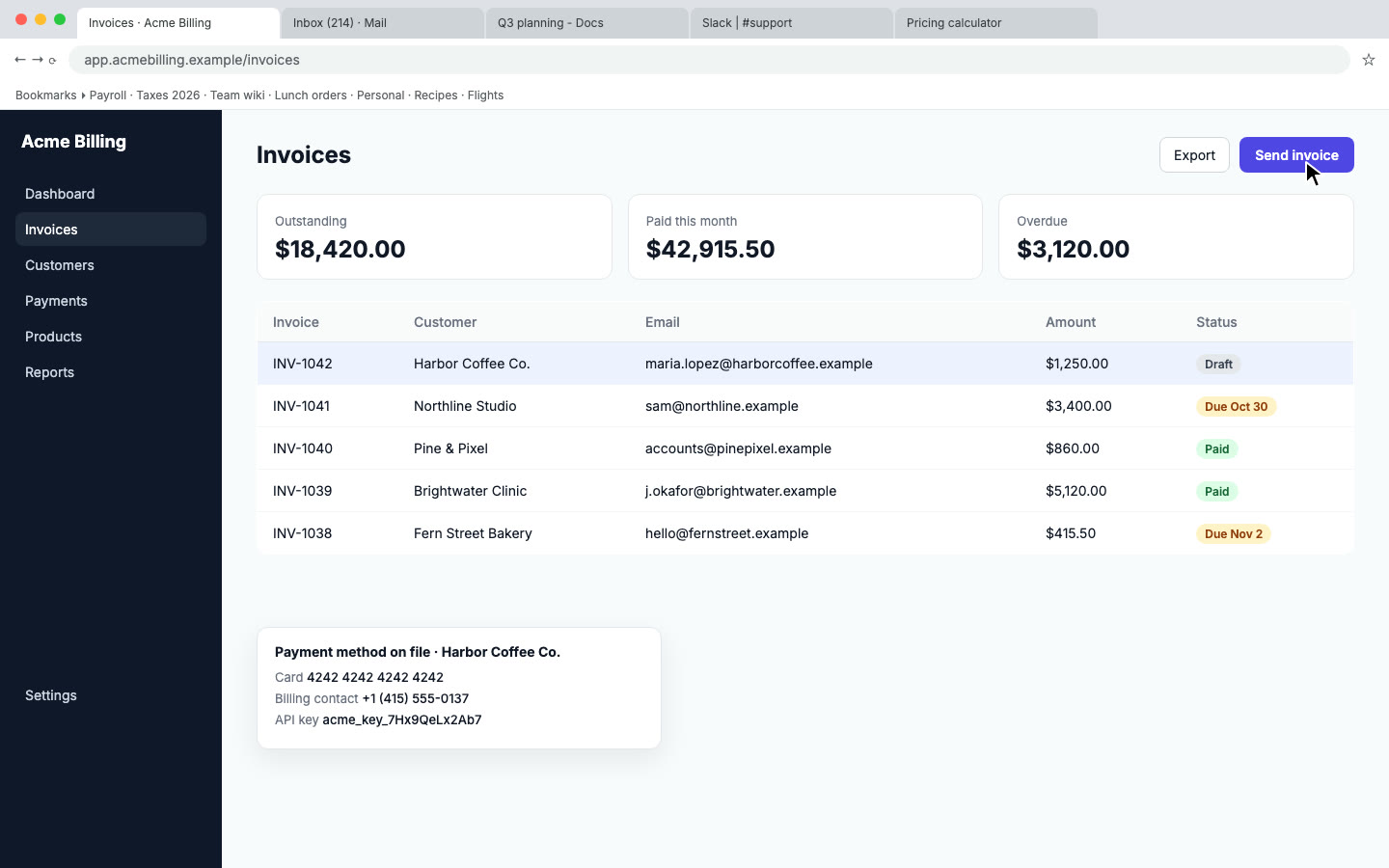
Private data blurred. Nook scans the screenshots for emails, phone numbers, card numbers and API keys and blurs them in both the video and the guide.
A share page. Chapters for each step, an embed code for your site or docs, and an MP4 to download. Add a password and an expiry date when the video is for one prospect or one investor.
Shorter cuts from the same recording. A Social cut (9:16, up to 30 seconds), a Short (16:9, up to 60 seconds), a Square cut (1:1, up to 60 seconds) and a full-length Vertical cut. There's also an Animated story: each step shown on your brand background, either as the real screen in a browser-style window that zooms toward the click, or as redrawn clean cards, up to 90 seconds. It suits launch posts and social.
A written step-by-step guide. A heading, a short note and a screenshot for each step. Draw boxes and arrows on the screenshots, then export as PDF, Word or Markdown for Notion or Confluence. The guide comes from the same steps as the video, so they match.
Translations. The same video in Spanish, French, Portuguese, Italian, Hindi, Japanese or Chinese, each with a native voice. See translated demo videos.
Who it's for
- Founders who need a demo for the landing page, a launch post or an investor email, and don't want to spend a weekend in an editor. See product demo videos and Product Hunt demo videos.
- Sales teams sending a short walkthrough ahead of a call, or a follow-up after one. See sales demo videos.
- App developers submitting to Shopify, Meta, Google OAuth verification or HubSpot. Nook has presets and checklists for each, with written test steps. See app review videos.
- Support and docs teams who want a video and an article for the same answer. See help center videos.
- Agencies and freelancers handing a finished build over to a client. See our client handover video guide.
AI demo video maker vs doing it by hand
| The manual way | With Nook | |
|---|---|---|
| Recording | Screen recorder, often several takes | One take with any recorder you already use |
| Script | Write it, then re-record narration until it sounds right | One line per step written for you, every line editable |
| Voiceover | Your voice, a mic and retakes | AI voice, your own voice tidied up, or captions only |
| Dead time | Cut by hand on a timeline | Silences and waiting cut for you |
| Captions | Typed or auto-generated, then fixed by hand | Timed to every line |
| Private data | Blur by hand, frame by frame, or record in a clean account | Emails, phones, card numbers and API keys found and blurred |
| Social and short cuts | Re-edit for each aspect ratio | Social, Short, Square, Vertical and Animated story from the same recording |
| Written guide | Separate job: screenshots, crops, writing | Exported from the same steps as PDF, Word or Markdown |
| Translations | Hire voice talent or skip it | Seven languages beyond English, each with a native voice |
| Changes later | Reopen the project and re-edit | Edit the script and re-render |
A video editor still gives you more control. If you need frame-exact cuts, multiple camera angles or motion graphics, a timeline editor is the right tool. Nook is for the common case: a clear walkthrough of a product, done in the time it takes to record it.
Honest limits
- It doesn't record. Nook edits recordings you've already made. A Chrome extension that captures exact clicks is coming soon, but it isn't in the Chrome Web Store yet.
- No timeline editor. That's on purpose. You edit the script, the steps, the voice and the look, not individual frames.
- 15 minutes per recording. Longer walkthroughs work better split into a few videos anyway.
- The AI voice isn't your voice. If that matters, keep your own audio and let Nook tidy it.
- Step detection can misjudge. On very fast or very visual recordings, the vision model may split steps in the wrong place or miss one. You can merge, cut and edit steps before rendering.
- What's on screen is what you get. Browser tabs, bookmarks and toolbars in your recording show as they are. Close what you don't want seen, or crop it out before you record.
- We're new. Nook has just launched and is built by a small team. Tell us what breaks and we'll fix it.
Tips for a better AI demo
- Record one task per video. A demo that shows one clear outcome is easier to follow and easier to update. See our demo video best practices.
- Click slower than feels natural. It gives the vision model, and your viewers, time to see what changed.
- Talk if you can. Even rough narration gives Nook better step boundaries and better script lines. You can still replace your voice afterwards.
- Use realistic data. A product full of "test test" looks unfinished. The privacy blur covers real emails and keys, so real-looking data is fine.
- Read the script before rendering. It takes a minute and it's the difference between a demo that sounds generic and one that sounds like your product.
Pricing
Your first video is free, up to a minute, with a share link and a small Nook watermark. After that a single video is $9, up to 15 minutes, with no watermark, 10 re-renders, the MP4, the PDF, Word and Markdown guide, and 2 translations. Upgrade to a plan within 7 days and the $9 comes off.
Pro is $19 a month ($190 a year) for 10 videos a month, about $1.90 each. Unused videos carry over for a month, extra videos are 5 for $12, every language is included and each video gets 20 re-renders.
Studio is $49 a month ($490 a year) for 30 videos a month, about $1.63 each, with your brand instead of Nook's on share pages, priority rendering, extra videos at 5 for $8 and unlimited re-renders.
There's no per-seat pricing on any plan. See pricing.
Questions
What is an AI demo video maker?
A tool that does the editing work of a demo video for you: writing the narration, adding a voice and captions and cutting dead time. Nook does this from a screen recording you upload, rather than asking you to record inside its own app.
Do I need to install anything?
No. Record with any tool you already have and upload the file in your browser. Nook takes MP4, MOV and WebM up to 15 minutes.
Do I have to talk while I record?
No. If you record in silence, a vision model reads the frames and Nook writes the narration from what happened on screen. If you talk, Nook uses your words to split the steps, and you can keep your voice or replace it.
Can I edit what the AI writes?
Yes. Every script line is editable, and you can cut or skip steps, change the voice and pace, and re-render. Re-renders are included: 10 with a single video, 20 per video on Pro and unlimited on Studio.
Will it blur passwords and customer data?
Nook scans for emails, phone numbers, card numbers and API keys and blurs them in the video and the guide. Other sensitive text, like names in a table, isn't covered, so record in a demo account when you can.
Can I get a vertical or short version for social?
Yes. From the same recording you can render a 30-second 9:16 Social cut, a 60-second Short, a 60-second Square cut, a full-length Vertical cut and an Animated story up to 90 seconds.
Can I use my own brand?
Yes. Add your logo, accent color, intro and outro cards, a background and music on any paid video. On Studio, share pages show your brand instead of Nook's.
How is it priced?
Per video, not per seat. The first video is free, a single video is $9, Pro is $19 a month for 10 and Studio is $49 a month for 30.
Make your demo video
Upload the recording you already have. Your first video is free, then $9 per video.
Start free