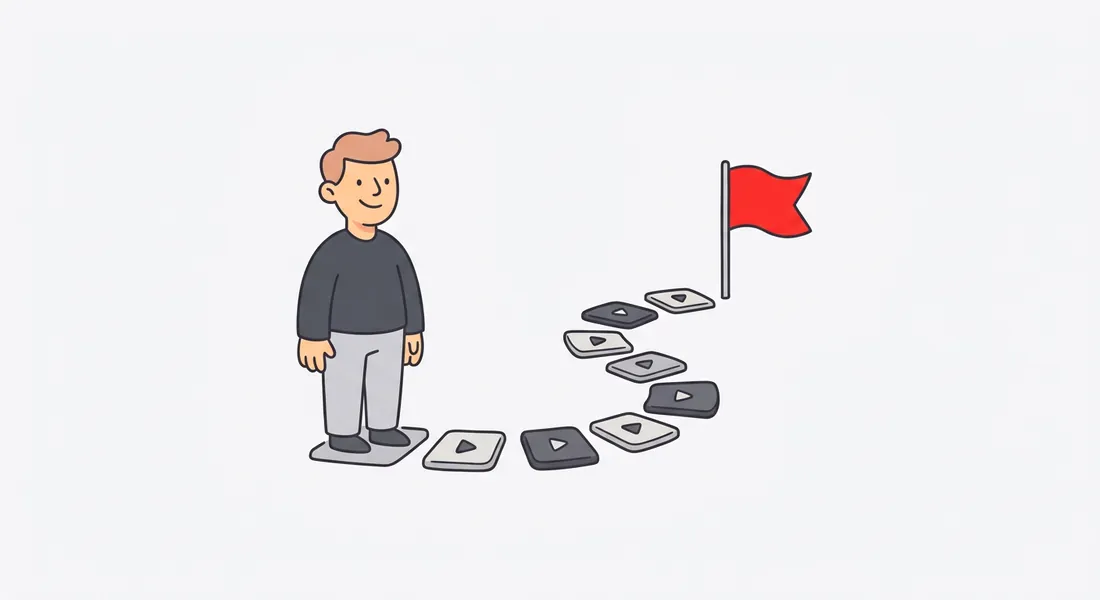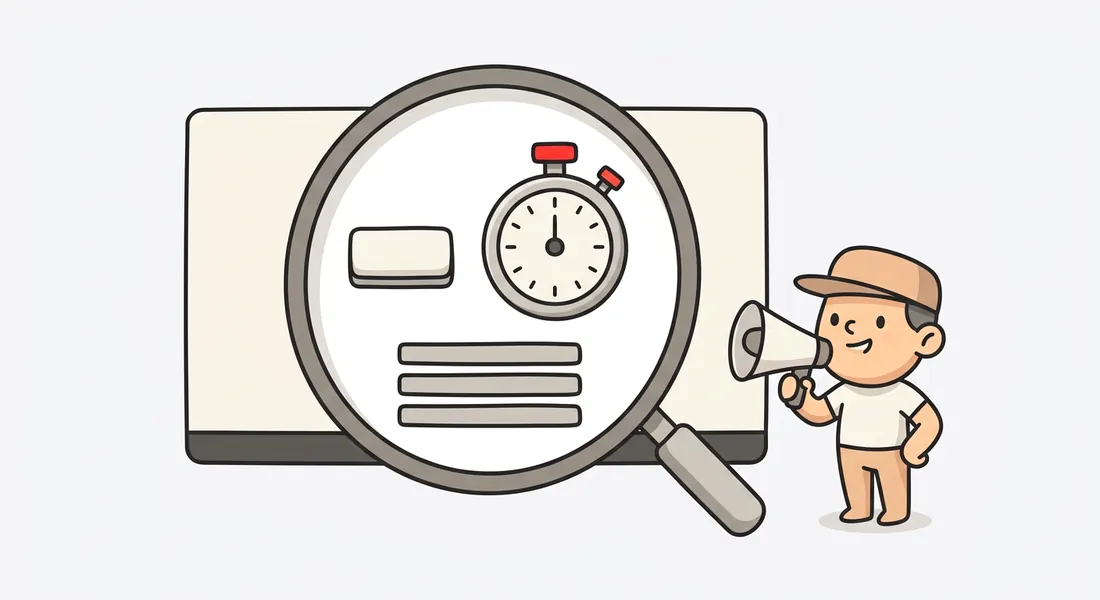
Most software demo videos fail for small, fixable reasons. The cursor races across the screen. The important button is a few pixels wide on a phone. The narrator talks over three clicks at once. The video starts with ten seconds of logo animation, and by the time the product appears, the viewer has scrolled away.
None of these problems need a bigger budget or a video team. They need a set of habits. This guide collects the demo video best practices we think matter most for founders, product marketers and support teams: how to design for silent autoplay, when to zoom and when not to, how to pace a walkthrough, how long a demo video should be for each job, and how to keep it accessible, private and findable.
If you are starting from zero, read how to make a product demo video first, and use our guide to writing a demo video script before you hit record. This article picks up from there and focuses on the craft details that separate a clear demo from a confusing one.
Design for silent autoplay first
A large share of demo videos are first seen with the sound off. Homepage hero videos autoplay muted by browser default. Social feeds autoplay muted. People watch support videos in open offices, on trains and in meetings they are half paying attention to. If your demo only makes sense with audio, many viewers will never understand it.
Design the video so it works on mute, then treat narration as a layer that adds depth.
Turn captions on by default
Captions are the single most useful thing you can add to a demo. They help people watching on mute, people who are deaf or hard of hearing, non-native speakers, and anyone who processes reading faster than listening. The W3C's guidance on captions and subtitles is a good primer on what good captions include.
Practical caption tips for screen recordings:
- Burn in captions for autoplay placements like the homepage hero and social posts, where you cannot rely on a player's caption toggle.
- Use closed captions (a separate track) on your own player and YouTube, so viewers can turn them off and search engines can read them.
- Keep lines short. Two lines at most, broken at natural phrase boundaries.
- Place captions where they do not cover the UI you are demonstrating. If the action is at the bottom of the screen, move captions up for that segment or zoom so the action sits higher in the frame.
Make it readable on a phone
A 1440p recording of a dense dashboard becomes unreadable when it is shrunk to a 375-pixel-wide phone screen. Before you publish, watch the video on an actual phone. If you cannot read the labels on the buttons being clicked, the viewer cannot either.
Fixes that help:
- Record with a smaller browser window or higher zoom level so text is larger.
- Hide bookmarks bars, extensions and unrelated tabs.
- Use zoom on the area of action (more on that below).
- Choose caption sizes that hold up on small screens.
Nielsen Norman Group's long-running research on how users read on the web found that people scan rather than read word by word. Treat on-screen text the same way: short, scannable labels beat long sentences.
Zooming in on clicks, and when not to zoom
Zoom is what makes a screen recording feel produced instead of raw. When the camera moves in to the button being clicked, the viewer knows exactly where to look. Done badly, zoom makes people feel seasick.
When zoom helps
- Small targets. Toggles, dropdown items, icons and form fields are easy to miss at full-screen scale.
- Dense interfaces. Dashboards, settings pages and tables with many columns.
- Mobile viewers. Zoom effectively enlarges the UI where it matters.
- Moments of change. A new value appearing, a status changing from pending to done, a chart updating.
When not to zoom
- When the whole screen changes. If a click opens a new page, stay wide so viewers see the new context, then zoom into the next action.
- When actions happen in quick succession in different corners of the screen. Zooming in and out every second is disorienting. Stay wide, or hold a medium zoom that frames both areas.
- When the point is the layout. If you are showing how a page is organized, zooming hides the thing you are trying to show.
- During typing of long text. Zoom in once on the field, hold, then zoom out when done. Do not follow every keystroke.
Keep zoom moderate and smooth
The most common zoom mistake is going too far. A gentle zoom that makes the target area about twice as large is usually enough. Extreme zoom hides context, makes the viewer lose their place, and exaggerates every small cursor movement.
Motion matters as much as strength:
- Ease in and ease out. Abrupt camera moves are jarring. A smooth acceleration and deceleration feels natural.
- Hold still while the viewer reads. Do not start zooming out the moment the click lands. Let the result sit on screen for a beat.
- Limit frequency. If you notice the camera moving constantly, remove some zooms. Steady frames are restful.
- Offer a snap option for very short cuts where smooth motion would feel sluggish, but use it sparingly.
Whatever tool you use, a good starting point is a moderate zoom strength with smooth motion, then dial it down if the recording has many rapid clicks.
Highlighting the clicked element
Zoom tells the viewer where to look. Highlighting tells them what to look at. A subtle outline around the clicked button or field removes any doubt about which control was used.
Click effects: ring, spotlight and friends
Click effects come in a few common styles:
- Ring: a short expanding circle at the click point. Quiet and clear.
- Spotlight: dims the rest of the screen so the clicked area stands out. Strong, useful for key moments.
- Element outline: draws a border around the element that was clicked. Precise and calm.
Use them sparingly. If every click gets a spotlight, nothing stands out. A sensible pattern is a light ring or outline on routine clicks and a spotlight reserved for the one or two moments that matter most, such as the button that delivers the "aha" result.
Pick one style for the whole video and keep it consistent. Consistency is the point: viewers learn the visual language in the first few seconds and then stop noticing it.
Cursor behaviour
Viewers follow the cursor. Treat it like a pointer in a live presentation.
- Move deliberately. Slow, direct movements. No circling, no nervous wiggles while you think.
- Park it when talking. If you are explaining something, move the cursor out of the way or keep it still.
- Do not hover over things you are not clicking. Tooltips and hover menus that pop up by accident are distracting.
- Avoid scrolling with the cursor in the content area. Scroll smoothly and slowly, and pause after each scroll.
- Rehearse the path. Know where the next click is before you record. Hunting for a button on camera is the most common source of wasted seconds.
Pacing: give every action room
Good pacing is mostly about pauses. The person recording knows what is about to happen. The viewer does not.
Pause after each action
After a click, hold for a moment so the viewer can see the result. A new modal, a success message or a populated table all need time to register. A rough rule: if there is new information on screen, leave enough time for someone to read it once at a relaxed pace.
Let narration breathe
Narration should describe what is happening or about to happen, one idea at a time. Do not narrate three clicks in one breath. If your script has a long sentence covering several steps, split it and spread it across the actions.
Write for the ear: short sentences, active verbs, the same words as the UI labels. "Click Create project" is clearer than "Next you'll want to go ahead and initiate a new project from the menu."
Voice speed
Narration that is too fast feels like an ad disclaimer. Too slow feels condescending. Aim for a calm, conversational pace that matches how you would explain the product to a colleague sitting next to you. If your audience includes many non-native speakers, lean slower.
Nook's AI voiceover lets you choose a male or female voice, adjust voice speed, and pick a Relaxed, Normal or Fast pacing that controls how much room is left between actions. Relaxed suits onboarding and support videos. Fast can work for a short homepage loop where viewers already know the category.
Trim dead time, not thinking time
Cut loading spinners, typing of long values, and the moments where you searched for the right menu. Do not cut the pause after a result appears. That pause is the viewer's thinking time.
How long should a demo video be?
There is no single right length. The right length depends on where the video lives, who is watching and what you want them to do next. Rather than offering invented averages, here is reasoned guidance based on the job each video has to do.
| Use case | Suggested length | Why | What to include |
|---|---|---|---|
| Homepage hero | Short, often under a minute | Visitors are deciding whether to keep scrolling. One core outcome is enough. | The main workflow from start to visible result. No setup, no settings. |
| Onboarding | One short video per task | New users want to complete one task now, not learn the whole product. | A single job, end to end, matching the steps they are about to take. |
| Feature announcement | Short, focused on the change | Existing users already know the product. They need the "what's new" and why it matters. | Before/after, where to find it, one realistic example. |
| Support article | As long as the task requires | The viewer has a specific problem and is motivated to watch. | Every step, with chapters if there are several. Pair with written steps. |
| Sales follow-up | A few minutes, tailored | The prospect asked for specifics. Relevance beats brevity here. | Their use case, their objections, and a clear next step. |
A few principles apply across all of them:
- Cut until it hurts, then cut a little more. Most first drafts contain setup that the viewer does not need.
- One video, one job. If you find yourself saying "and also," that is probably a second video.
- Front-load the outcome. Show the result early, then show how to get there.
Use chapters for longer videos
Once a video covers more than one distinct step, add chapters. Chapters let viewers skip to the part they need and come back later, which matters most for support and sales videos. On YouTube, you can add chapters by listing timestamps in the description, as explained in YouTube's help article on video chapters.
Nook generates chapters on its share page, so a longer walkthrough is navigable without extra work.
Thumbnails and the first frame
The thumbnail and first frame decide whether someone presses play. For autoplay placements, the first frame is effectively the thumbnail.
- Show the product, not a logo. A clear view of the interface at its most interesting state communicates more than a brand card.
- Show the result, not the empty state. A full dashboard is more inviting than a blank one.
- Keep text minimal. If you add a title, use a few large words that remain legible at thumbnail size.
- Make the first second meaningful. Avoid fading in from black. Start on the product.
Audio quality and background music
Viewers will forgive average visuals but not bad audio. If you record your own narration:
- Use a dedicated microphone, even an inexpensive one, rather than a laptop's built-in mic.
- Record in a small room with soft furnishings to reduce echo.
- Turn off notifications, fans and anything that hums.
- Keep levels consistent between takes.
Background music volume
Music adds polish, but it should sit well underneath the voice. If you notice the music, it is too loud. Choose calm instrumental tracks without vocals, and lower the music during narration. For support and onboarding videos, consider no music at all; viewers are concentrating.
Branding without slowing the start
Branding makes a demo feel like yours, but every second of branding at the start is a second before the viewer sees value.
- Keep intro cards short, or skip them on autoplay placements entirely.
- Put the fuller branding at the end with an outro card that carries the call to action.
- Use your accent color for highlights and click effects so branding is present throughout without taking time.
- Add a small logo in a corner rather than a full-screen logo sting.
- Use a consistent frame style across all your videos so they look like a set.
Nook supports frame styles, an accent color, your logo, background music and intro and outro cards, which makes it straightforward to keep every video on brand without adding seconds to the opening.
Accessibility
Accessible demo videos are better demo videos for everyone. The W3C's Making Audio and Video Media Accessible resource covers the topic in depth. The essentials for screen recordings:
Captions
WCAG Success Criterion 1.2.2 asks for captions on prerecorded audio content in synchronized media. The W3C's Understanding Captions (Prerecorded) page explains what this means in practice. Auto-generated captions are a starting point; review them for product names and technical terms.
Transcripts and descriptions of visual actions
A demo often conveys information visually that narration does not mention, like which menu item was clicked. Blind and low-vision users miss that. Narrate actions explicitly ("Open Settings, then select Billing") and offer a transcript or text alternative. See the W3C's guidance on audio description or media alternative.
A written step-by-step version of the video serves this need and is useful on its own. Our guide on how to turn a screen recording into a step-by-step guide walks through the process.
Avoid flashing and give people control
- Avoid rapid flashing effects, strobing transitions and quick full-screen color changes.
- Keep zoom motion smooth and moderate, as discussed above, for viewers sensitive to motion.
- If a video autoplays and runs longer than a few seconds, provide a way to pause, stop or hide it. The W3C's Understanding Pause, Stop, Hide explains the requirement for moving content.
Privacy: blur before you publish
Screen recordings capture everything on screen. It is easy to leak something you never meant to share.
Watch for:
- Email addresses in user lists, account menus and notification toasts.
- API keys and tokens in settings pages, developer consoles and terminal windows.
- Customer data such as names, addresses, phone numbers and order details.
- Payment information, including partial card numbers.
- Internal tools in other tabs, bookmarks and browser autocomplete suggestions.
Best practices:
- Record in a demo account seeded with realistic but fake data.
- Close unrelated tabs and disable notifications before recording.
- Review every frame where sensitive fields appear, not just the obvious ones.
- Blur rather than crop when the context matters.
Nook's privacy blur detects emails, phone numbers, card numbers and API keys in the recording so you can blur them before sharing. Still review the final video yourself; automated detection is a safety net, not a substitute for a careful look.
Localization
If you sell or support customers in more than one language, a translated demo can make a real difference to comprehension. Some guidance:
- Script for translation. Short sentences and plain words translate more cleanly.
- Avoid idioms and wordplay that do not survive translation.
- Leave timing slack. Some languages need more words for the same idea, so a tightly timed narration may overrun.
- Translate captions and voiceover together so they match.
- Check the UI language. If your product is localized, consider recording in the target language, or note that the interface is shown in English.
Nook can translate a video into 7 languages with native voices, which covers captions and voiceover in one pass.
Video SEO basics on your own site
A demo on your own site can bring search traffic as well as conversions, if search engines can find and understand it. Google's video best practices documentation is the authoritative reference. Key points:
- Put the video on a dedicated, indexable page where it is the main content, not hidden in a modal or behind a click.
- Use a supported video format and an embed that Google can see in the rendered HTML.
- Provide a high-quality thumbnail.
- Add structured data (VideoObject) with a title, description, thumbnail and upload date.
- Include a transcript or written walkthrough on the page. It helps viewers and gives search engines text to understand.
- Write a descriptive title and surrounding copy that match how people search, for example "how to export invoices in [product]."
- Mark key moments with chapters or clip markup for longer videos.
Support videos are particularly good candidates, because the searches are specific and the intent is high.
Measuring and iterating
You do not need a dashboard full of metrics to improve a demo video. Start with qualitative signals:
- Where do people drop off? If your player reports retention, look for sudden drops. They often point to a slow intro, a confusing step or a long loading screen.
- What questions come in after people watch? Support tickets and sales calls that ask "how do I..." about something the video covers suggest that step is unclear.
- Do viewers do the next thing? For onboarding, check whether people who watched complete the task. For a homepage video, look at whether visitors continue to signup or pricing.
- Watch someone watch it. Sit with a colleague or customer who has not seen it. Note where they squint, rewind or look away.
- Rewatch on mute and on a phone. Every time you update a video.
Change one thing at a time, such as the first five seconds, the length or the thumbnail, so you can tell what made a difference.
Do and don't
| Do | Don't |
|---|---|
| Turn on captions and design for mute | Rely on narration alone to explain what is happening |
| Zoom moderately with smooth easing | Zoom in and out on every click |
| Highlight the clicked element with one consistent effect | Use a spotlight on every action |
| Pause after each result appears | Narrate three steps in one sentence |
| Start on the product | Open with a long logo animation |
| Match video length to the job | Cram the whole product into one video |
| Use demo data and blur sensitive fields | Record in a real account with live customer data |
| Add chapters to longer walkthroughs | Make viewers scrub to find a step |
| Keep music well below the voice | Let music compete with narration |
| Publish on an indexable page with a transcript | Hide the video in a modal with no text |
Checklist
Before recording:
- Script written, one idea per sentence, using the exact UI labels
- Demo account with realistic, fake data
- Notifications off, unrelated tabs closed, bookmarks bar hidden
- Browser window sized so text is readable on a phone
- Click path rehearsed
During editing:
- Captions on, reviewed for product names and terms
- Zoom moderate, smooth, and not on every click
- One consistent click effect, spotlight reserved for key moments
- Pauses after each result
- Dead time trimmed, thinking time kept
- Sensitive data blurred and checked frame by frame
- Music quiet or absent, voice clear
- Branding short at the start, call to action at the end
- Chapters added if there is more than one step
Before publishing:
- Watched on mute
- Watched on a phone
- Thumbnail shows the product in an interesting state
- No flashing effects, pause control available for autoplay
- Transcript or written steps available
- Dedicated page, descriptive title, structured data
- Translations checked by someone who speaks the language, where possible
FAQ
How long should a demo video be?
As long as it takes to do one job well. A homepage hero video should show one core outcome quickly. Onboarding videos work best as one short video per task. Support videos can be longer because the viewer is motivated, but they should use chapters. Sales follow-ups can run a few minutes if they are tailored to the prospect.
Should demo videos have captions?
Yes. Captions help people watching on mute, people who are deaf or hard of hearing, and non-native speakers. They are also part of WCAG guidance for prerecorded video. Burn them in for autoplay placements and provide a caption track on your own player.
How much should I zoom in on a screen recording?
Enough to make the target clearly readable, but not so much that the viewer loses context. A moderate zoom with smooth easing in and out works for most clicks. Skip zoom when the whole page changes or when actions jump quickly between distant parts of the screen.
Do I need a voiceover?
Not always. A captioned video without voiceover can work well for short autoplay placements. For onboarding, support and sales videos, narration usually helps people follow along. An AI voiceover is a reasonable option if you do not want to record your own voice.
Should I add background music?
Optional. If you use it, keep it instrumental and well below the voice. For support and onboarding videos, many teams leave it out so viewers can concentrate.
How do I hide sensitive data in a demo video?
Record in a demo account with fake data, close unrelated tabs and turn off notifications. Then blur emails, phone numbers, card numbers, API keys and any customer information before you publish, and review the final video frame by frame.
How do I get my demo video to show up in Google?
Host it on a dedicated, indexable page where the video is the main content, add VideoObject structured data, a good thumbnail and a descriptive title, and include a transcript or written steps on the page. Google's video documentation covers the details.
Can one recording serve as both a video and a written guide?
Yes. Many teams record once and export a step-by-step written version for their help center. It serves readers who prefer text, supports accessibility, and gives search engines more to index.
Putting it into practice
The habits in this guide are simple: design for mute, zoom gently, highlight with restraint, pause after every action, match length to the job, and check accessibility, privacy and SEO before you publish. Applied consistently, they turn an ordinary screen recording into a demo that people actually finish.
Nook was built to make these defaults easy. You upload any screen recording and get a written script, AI voiceover, captions, privacy blur, chapters, translations and a step-by-step guide export (PDF, Word or Markdown) from the same video. Learn more on the Nook homepage or see pricing: your first video is free (up to 1 minute, with a watermark), then it is $9 per video or $19 a month for Pro. If you want to try it on your next demo, you can create a free account here.
Make your first demo video free
Upload a screen recording. Nook writes and voices the script, adds captions and writes the step-by-step guide.
Make a free video