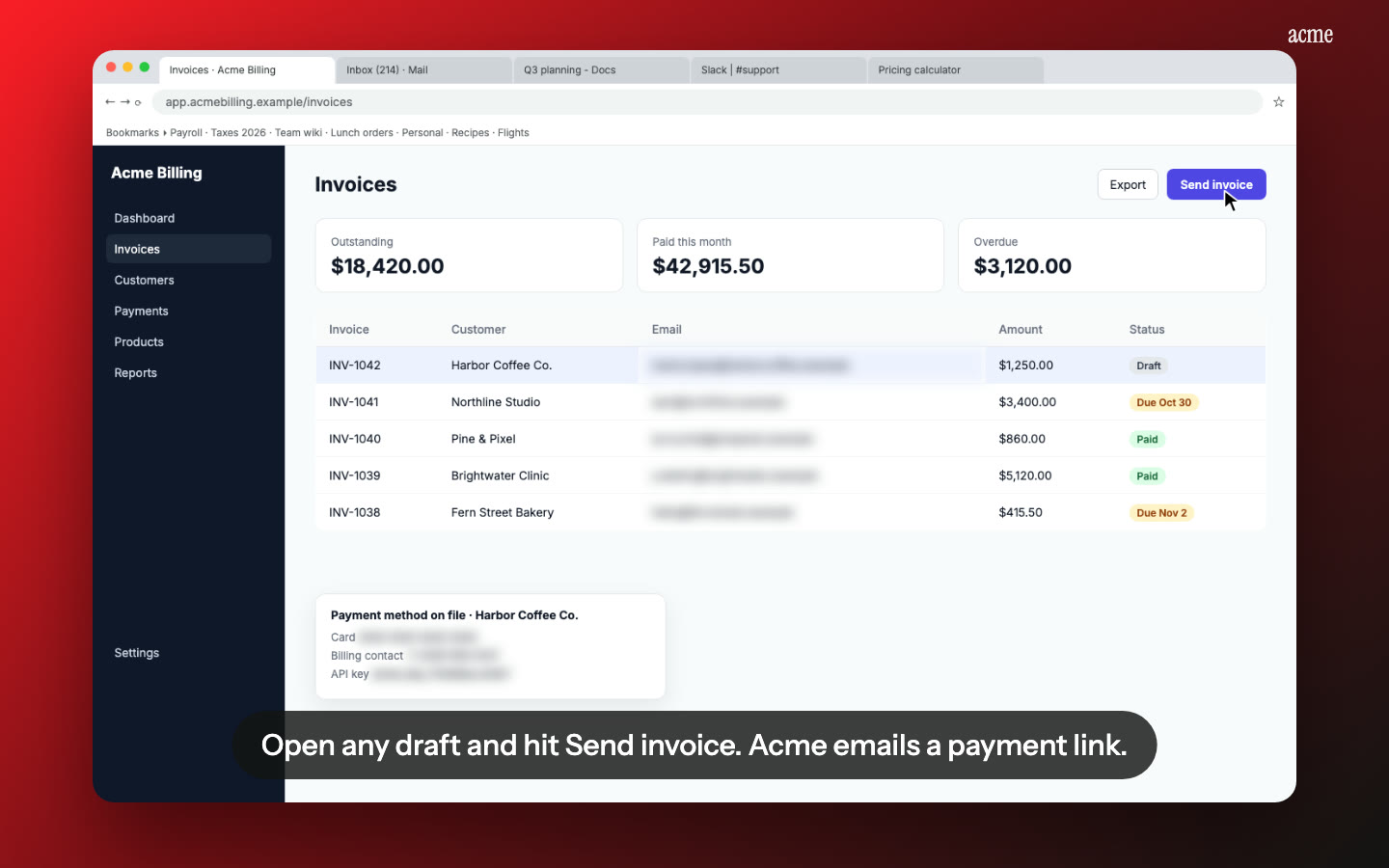
What Nook does
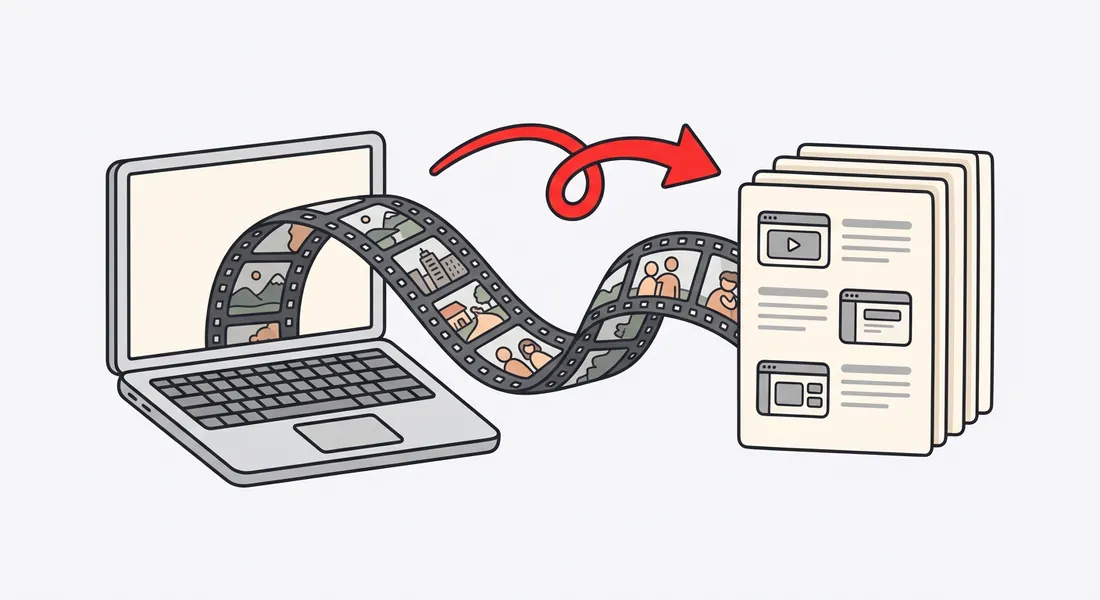
Nook turns an existing screen recording into a written step-by-step guide and a narrated video. Upload an MP4, MOV or WebM up to 15 minutes. Nook splits it into steps and gives each one a heading, a short note and a screenshot. Mark up the screenshots, then export the guide as PDF, Word or Markdown.
You don't need a browser extension or a special recorder. A recording from QuickTime, the Windows Snipping Tool, OBS, Zoom or a Loom download works. That includes recordings you made months ago, before anyone asked you to write the process down.
How it works
- Record the task once. Do it the way you always do it, with your screen recording. Talk through it if you like, or work in silence.
- Upload the file. MP4, MOV or WebM, up to 15 minutes.
- Nook splits it into steps. If you talked, your narration marks where each step starts and ends. If you didn't, a vision model reads the frames and works out what changed on screen.
- Nook writes each step. A heading and a short instruction per step, with a screenshot taken at the right moment. Edit any heading or note, cut a step, or skip one.
- Mark up the screenshots. Draw boxes and arrows so the reader knows exactly where to click.
- Export. Download the guide as PDF or Word, or copy it as Markdown and paste it into Notion or Confluence. Headings, steps and screenshots carry across.
- Share the video too. The same steps become a narrated video with captions and chapters. Some people read, some people watch. Give them both.
For a longer walkthrough of the process, with tips on recording for a clean guide, see how to turn a screen recording into a step-by-step guide.
What you get from one recording
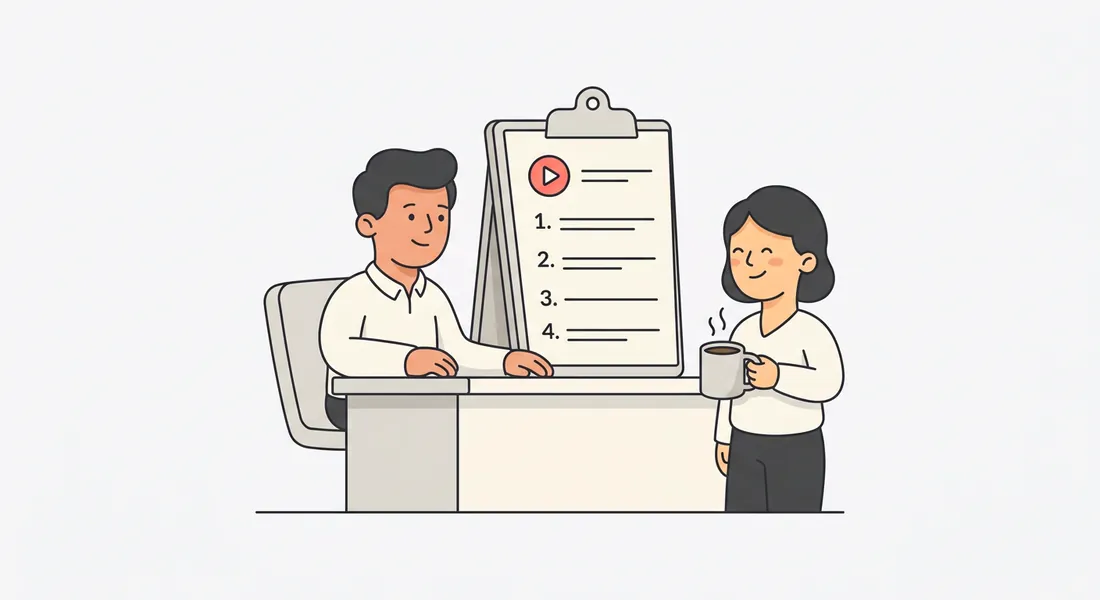
A written guide. One section per step: a heading, a short note and a screenshot. It reads like something a person wrote, because every line is editable before you export.
Screenshots you can mark up. Boxes and arrows on any screenshot, so "click Settings" comes with a picture of where Settings is.
Three export formats. PDF for sending or printing, Word for teams that keep procedures in documents, and Markdown for Notion, Confluence or any docs tool that takes it.
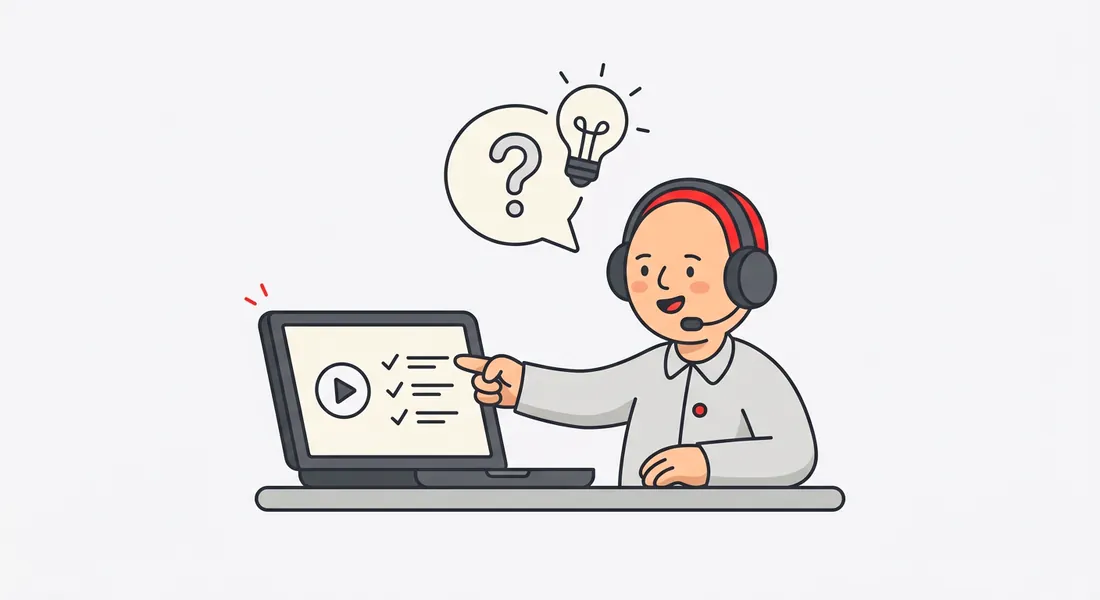
A narrated video of the same steps. With an AI voice, your own voice with the ums and silences cut, or captions only. A share page with chapters lets people jump to the step they're stuck on. Embed it next to the written guide, or download the MP4.
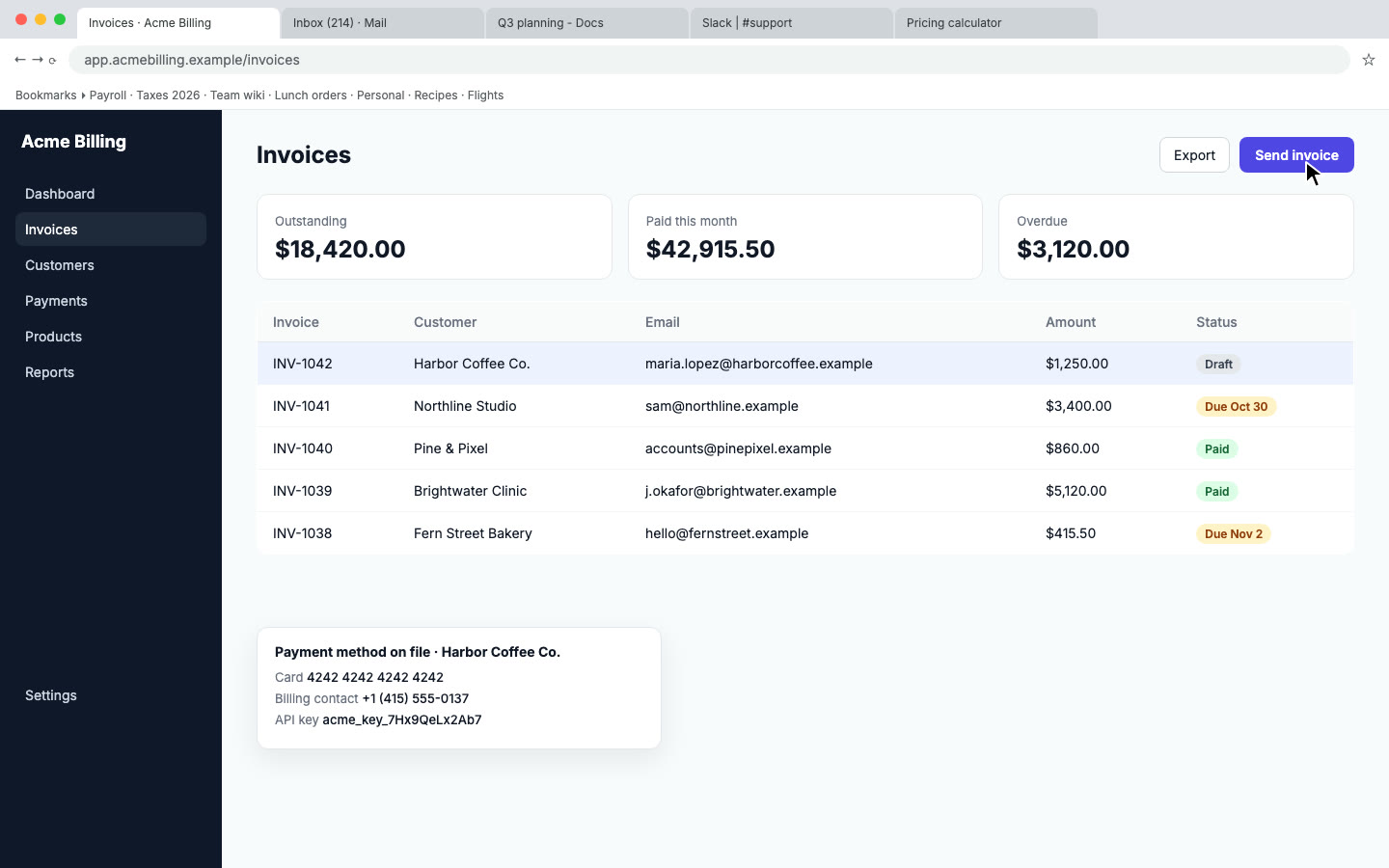
Private data blurred. Nook scans the screenshots for emails, phone numbers, card numbers and API keys and blurs them in both the guide and the video.
Translations. The guide and video in Spanish, French, Portuguese, Italian, Hindi, Japanese or Chinese, with a native voice for each. See translated demo videos.
Who it's for
- Ops and team leads writing SOPs for tasks that only one person knows how to do. See SOP videos.
- Support and docs teams turning the question you answer every week into a help article. See help center videos.
- HR and onboarding building a set of how-tos for new hires: the VPN, the expense tool, the CRM.
- Agencies and freelancers leaving a client with written instructions for the thing you built. See our client handover video guide.
- App developers who need written test steps for an app review. Nook has presets for Shopify, Meta, Google OAuth verification and HubSpot. See app review videos.
Screen recording to guide vs the manual way
| The manual way | With Nook | |
|---|---|---|
| Capturing steps | Pause, screenshot, crop, repeat for every step | Record once, steps found for you |
| Writing | Type every instruction from memory or notes | A heading and note per step written for you, all editable |
| Annotation | Open an image editor for each screenshot | Boxes and arrows drawn in place |
| Private data | Blur by hand in each screenshot | Emails, phones, card numbers and API keys blurred |
| Video version | Separate job, often skipped | Narrated video from the same steps |
| Formats | Rebuild for each tool | PDF, Word and Markdown from one guide |
| Translation | Translate and re-capture or skip it | Seven languages beyond English |
| Old recordings | Watch it and transcribe by hand | Upload it and get a guide |
Nook vs click-capture tools like Scribe and Tango
Tools like Scribe and Tango are built around a browser extension or desktop app that captures each click while you work. They're good at it. Because they record the click itself, they know exactly where you clicked, and the guide is ready the moment you stop. Many teams already use them and like them.
Nook starts from a different place: a video file.
| Click-capture tools (like Scribe, Tango) | Nook | |
|---|---|---|
| Input | Clicks captured live by their extension or app | Any screen recording file, from any recorder |
| Recordings you already have | Not usable, you redo the task with the tool running | Upload and get a guide |
| Step detection | Exact, from the captured click | From your narration or a vision model reading the frames |
| Main output | Written guide, sometimes with a slideshow-style view | Written guide and a narrated, captioned video |
| Voice | Varies by tool | AI voice, your own voice tidied up, or captions only |
| Desktop apps and non-browser work | Depends on the tool and plan | Anything you can screen record |
| Pricing model | Usually per seat | Per video, no per-seat pricing |
Pick a click-capture tool if your team documents many short browser tasks every day, wants guides with no review step, and is happy to install an extension on every machine. Exact click positions are hard to beat.
Pick Nook if you already have recordings, want a real video alongside the written guide, work outside the browser, or don't want to buy seats for people who write one guide a month. We have our own Chrome extension recorder that captures exact clicks, but it isn't in the Chrome Web Store yet.
Honest limits
- Step detection from video isn't perfect. On fast or very visual recordings, the vision model can split a step in the wrong place or miss a quick click. Review the steps before you export. Talking while you record helps a lot.
- It doesn't record. You bring the recording. The Chrome extension is coming soon.
- 15 minutes per recording. For SOPs, one task per recording is easier to find and update anyway.
- No direct Notion or Confluence sync. Copy the Markdown and paste it in.
- The screen shows as recorded. Browser tabs, bookmarks and notifications appear in screenshots as they were. Close what you don't want seen before you record.
- The blur covers specific patterns. Emails, phone numbers, card numbers and API keys. Names or other text in a table aren't blurred, so use a demo account for sensitive work.
- We're new. Nook has just launched and is built by a small team.
Tips for a cleaner guide
- One task per recording. "Approve an expense" is a guide. "Everything in the finance tool" is a course.
- Pause briefly after each click. It gives the screenshot a settled screen and makes step boundaries clearer.
- Say what you're doing. "Now open Settings and pick Billing" gives Nook a clean step and a better note.
- Edit the headings into verbs. "Open Billing", "Add a card", "Save". Readers scan headings first.
- Add one arrow per screenshot. More than that and the reader stops looking.
Pricing
Your first video and guide are free, up to a minute, with a share link and a small Nook watermark. After that a single video is $9, up to 15 minutes, with no watermark, 10 re-renders, the MP4, the PDF, Word and Markdown guide, and 2 translations. Upgrade to a plan within 7 days and the $9 comes off.
Pro is $19 a month ($190 a year) for 10 videos a month, about $1.90 each. Unused videos carry over for a month, extra videos are 5 for $12, every language is included and each video gets 20 re-renders.
Studio is $49 a month ($490 a year) for 30 videos a month, about $1.63 each, with your brand instead of Nook's on share pages, priority rendering, extra videos at 5 for $8 and unlimited re-renders.
No plan charges per seat. See pricing.
Questions
Can I turn an old screen recording into a guide?
Yes. Any MP4, MOV or WebM up to 15 minutes works, no matter which tool recorded it or when. That's the main difference from click-capture tools, which need the task redone with their extension running.
Can I make an SOP from a video?
Yes. Upload the recording and Nook writes a heading, note and screenshot for each step. Edit it, then export as Word or PDF, or paste the Markdown into your wiki. See SOP videos.
What if I didn't talk during the recording?
That's fine. A vision model reads the frames and works out the steps from what changed on screen. Narration makes the steps more accurate, so talk if you can.
Does it work with Notion and Confluence?
Copy the guide as Markdown and paste it in. Headings, steps and screenshots carry across. There's no direct sync.
Can I edit the steps before exporting?
Yes. Edit any heading or note, cut or skip steps, and draw boxes and arrows on screenshots. The video follows the same steps, so re-render it after big changes.
Do I have to make a video if I only want the guide?
The guide and the video come from the same recording, so you get both. Use whichever you need. Captions-only mode keeps the video quiet if you don't want a voice.
Is it the same as Scribe or Tango?
No. Those tools capture clicks live with an extension. Nook works from a recording file and also gives you a narrated video. If your team wants exact click capture in the browser, they're a good choice.
How much does it cost?
The first one is free. A single video with its guide is $9, Pro is $19 a month for 10 and Studio is $49 a month for 30. No per-seat pricing.
Make your first guide
Upload the recording you already have. Your first video is free, then $9 per video.
Start free