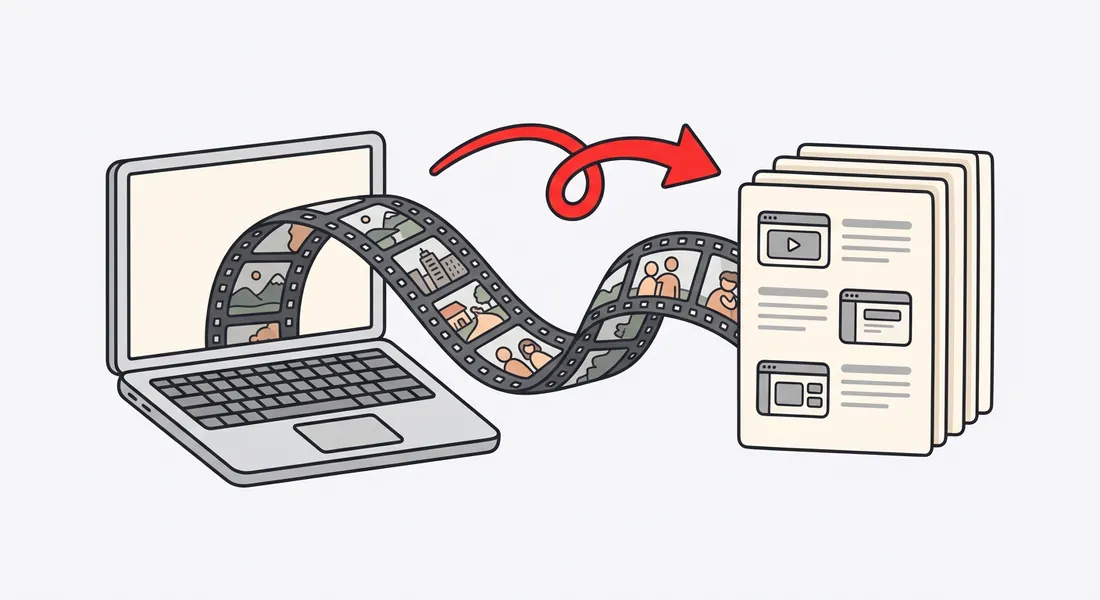
You recorded your screen while doing a task. Maybe it was setting up a new user, exporting a report, or configuring an integration. The video exists, but your team keeps asking the same question: "Is there a written version?"
That question is fair. A recording shows the process. A written guide lets people follow it at their own pace, find the one step they need, and copy the exact values without pausing a video ten times.
This article walks through how to turn a screen recording into a step-by-step guide that works as an SOP, a help center article, or an internal how-to doc. It covers how to write each step, how to handle screenshots, how to structure the guide, where to publish it, and how to keep it accurate when the product changes. You will also find a full worked example, a reusable template, a checklist and an FAQ.
Why you need both a video and a written guide
Teams often treat video and written documentation as either/or. In practice they serve different readers and different moments.
Skimmers and watchers
Some people want to watch the whole flow once to understand it. Others already know most of it and need to confirm one setting. A video is great for the first group. A written guide is better for the second, because they can scan headings and jump straight to step 7.
The Nielsen Norman Group has written for years about how people scan web pages rather than reading them word by word. A written guide with clear headings and numbered steps fits that behavior. A video, by contrast, is linear.
Searchability
Search engines and internal search tools index text. If your process only lives in a video, nobody searching your help center for "reset two-factor authentication" will find it unless the title happens to match. A written guide puts every term, menu name and error message into searchable text. Google's guidance on creating helpful, people-first content is a good reminder that pages should actually answer the question a searcher brought with them.
Accessibility
Not everyone can watch or hear a video. Some readers use screen readers, some are in a quiet office without headphones, and some simply process text better. The W3C's guidance on making audio and video media accessible recommends captions and transcripts, and a written step-by-step guide covers much of the same need for procedural content.
Copy-pasteable values
Videos are bad at exact values. If a step requires a webhook URL, a field name, a cron expression or a specific dropdown option, readers want to copy it. Text lets them do that. Pausing a video and retyping a 40-character string invites typos.
When each format works best
| Situation | Video works best | Written guide works best |
|---|---|---|
| First-time overview of a workflow | Yes | Helpful as a follow-up |
| Looking up one specific step | No | Yes |
| Copying exact values or settings | No | Yes |
| Searching a help center or wiki | Weak | Strong |
| Reader using a screen reader | Needs captions and transcript | Strong with good alt text |
| Printing or offline use | No | Yes (PDF) |
| Selling or showing the product | Strong | Supporting role |
If you are also making a demo video from the same recording, our guide on how to make a product demo video covers that side.
The anatomy of a good step
A guide is only as good as its individual steps. Each step should tell the reader exactly what to do and what they should see when it worked.
Start with an action verb
Begin each step with the verb: Click, Select, Enter, Open, Choose, Copy, Toggle. This tells the reader immediately what kind of action is coming. Avoid starting with "You will want to" or "Next, it is necessary to".
Put the target in bold
The thing the reader acts on is the most important word in the step. Make it bold and use the exact label from the interface:
- Click Settings.
- In the Workspace name field, enter your company name.
- Select Export as CSV.
Match the capitalization on screen. If the button says "Save changes", do not write "Save Changes" or "the save button".
Describe the expected result
After the action, add a short sentence about what happens. This is how readers know they are on track:
Click Create project. The new project opens with an empty task list.
This also helps when something goes wrong. If the reader does not see the empty task list, they know the problem is at this step, not three steps later.
One action per step
Combining actions creates missed steps. "Open Settings, go to Billing, and click Update card" is three steps. Split them. Readers lose their place less often, and screenshots line up with steps cleanly.
The exception is a trivial follow-on, like "Click Save" at the end of a short form. Use judgment, but default to one action.
Mention where the target is
When an element is hard to find, add a location cue: "In the top-right corner, click your avatar." Keep location cues short and avoid relying only on color or position, which do not help screen reader users.
Headings and grouping steps into sections
A long flat list of 25 steps is hard to follow. Break it into sections that match natural phases of the task.
For example, a guide to setting up a new team workspace might use:
- Create the workspace
- Invite team members
- Set permissions
- Connect your calendar
Each section gets a ### heading and its own numbered list, starting again at 1. Readers scanning the page can see the shape of the whole task before they start, and they can return to the right section later.
Good section headings are tasks, not topics. "Invite team members" is better than "Team members". Use sentence case and keep headings short.
If a guide has more than about four or five sections, consider whether it is really two guides. A guide that covers both "set up" and "troubleshoot" is often better split, with a link between them.
Screenshots that actually help
Screenshots turn abstract instructions into something readers can match against their own screen. Bad screenshots, though, add noise. Here is how to make them useful.
Crop to the relevant area
A full-screen capture of a 27-inch monitor shrinks to unreadable size in a help article. Crop to the part of the interface that matters, with enough surrounding context that the reader can orient themselves. Usually that means the panel or dialog, plus a bit of the surrounding navigation.
Annotate with boxes, arrows and numbered callouts
Draw attention to the target:
- Boxes (rectangles) around the button or field the reader should use.
- Arrows when the target is small or easy to miss.
- Numbered callouts when one screenshot covers several steps, with the numbers matching the step numbers.
- Short text labels sparingly, for things like "Click here first".
Pick one annotation color and use it everywhere. A high-contrast color that does not appear in your product's UI works well.
Keep sizing consistent
Screenshots of wildly different widths make a guide feel messy. Pick a standard width for full-panel shots and another for close-ups, and stick to them. Capture at the same browser zoom level each time so text size stays consistent.
Blur sensitive data
Screen recordings often capture real data: customer emails, phone numbers, API keys, payment card numbers, internal URLs. Blur or redact these before publishing. Use a test account with fake data when you can, and still check every screenshot, because notifications and autofill can leak real information.
Write alt text
Each screenshot needs alt text that describes what it shows and why it matters, such as "Project settings page with the Archive project button highlighted." The W3C's writing tips for accessibility include practical advice on alternative text and clear content.
Prerequisites and "Before you start"
Nothing frustrates a reader more than reaching step 9 and discovering they needed admin access the whole time. Put requirements at the top in a short "Before you start" section.
Common prerequisites include:
- The role or permission level required (for example, admin or owner).
- The plan or feature tier, if the feature is not available to everyone.
- Accounts or credentials for any connected tool.
- Files or information to have ready, like a CSV in a specific format.
- Roughly how long the task takes.
Keep it to a short bulleted list. If a prerequisite is itself a process, link to its own guide rather than explaining it inline.
Writing for scanning
Readers of procedural content are usually in the middle of doing something. They glance at the guide, act, glance back. Your writing should support that.
Practical rules, consistent with the Nielsen Norman Group research on how users read on the web:
- Put the most important information first in each paragraph and each step.
- Use numbered lists for sequences and bullets for non-ordered items.
- Keep paragraphs to two or three sentences.
- Use meaningful headings that describe what the section helps you do.
- Bold interface labels, not random phrases for emphasis.
- Move background explanation out of the steps and into a short intro or a note.
Plain language and style guides
You do not need to invent a writing style for your documentation. Several well-maintained style guides already answer most questions.
- The Google developer documentation style guide covers procedures, UI element formatting, and word choice in detail.
- The Microsoft Writing Style Guide has clear guidance on describing interactions with UI and on a warm, direct voice.
- The US government's plain language guidelines are useful for anyone writing for a broad audience, with advice on short sentences, active voice and common words.
Pick one as your house reference and note any exceptions in a short internal doc. Consistency matters more than which guide you choose. A few habits from these guides that help most in how-to content:
- Use second person ("you") and active voice.
- Use "select" for choosing from lists and "click" or "tap" for buttons, applied consistently.
- Avoid "simply", "just" and "easy". If the reader is stuck, those words make it worse.
- Write numbers as numerals in steps, since readers often match them against the screen.
The manual process: from recording to guide
Here is a reliable process if you are doing it by hand.
1. Record the task cleanly
Use a test account with realistic but fake data. Close unrelated tabs and turn off notifications. Do the task at a normal pace, without detours. If you plan to also produce a narrated video, a short outline helps; see our article on writing a demo video script.
2. List every action
Play the recording back and write down every click, selection and typed value in order. Note the exact label of each target. This raw list is the skeleton of your guide, and it is where most missed steps get caught.
3. Capture screenshots
Pause the recording at each meaningful moment and take a screenshot, or retake them live at the same zoom level. Crop, annotate and blur each one.
4. Write the guide
Group actions into sections, turn each action into a step with a verb, a bold target and an expected result. Add a title, a one-sentence intro saying what the guide helps the reader do, a "Before you start" section, and any tips or troubleshooting notes.
5. Review by following it
Give the draft to someone who did not write it and ask them to complete the task using only the guide. Watch where they hesitate. Fix those spots. Then have a subject expert check accuracy.
This works, but it is slow. Listing actions and taking, cropping and annotating screenshots is the bulk of the effort, and it has to be repeated every time the UI changes.
The faster automated process
Tools can now do the mechanical parts of that process for you. With Nook, you upload a screen recording of the task, made with any recorder. It then produces two things from the same recording: a narrated demo video and a step-by-step guide.
The guide includes a heading and a short note for each step, with an annotated screenshot. You can draw boxes, arrows and text on the screenshots, crop them, and blur areas. Its privacy blur detects emails, phone numbers, card numbers and API keys so you can hide them before sharing. It can also generate the guide's intro, prerequisites and tips, which you then edit.
Automation does not remove the review step. You still read every step, fix labels, tighten wording and test the guide with a fresh reader. What it removes is the hour spent scrubbing through a video and taking screenshots.
Formats and where to publish
Different teams consume documentation in different places. Pick the format based on where readers already look.
| Format | Best for | Notes |
|---|---|---|
| Help center article | Customers and public users | Searchable, linkable, easy to update |
| Markdown | Notion, Confluence, Git-based docs, wikis | Pastes cleanly with headings and lists intact |
| Offline use, printing, attaching to tickets or contracts | Fixed layout, harder to update | |
| Word (.docx) | Teams that review and edit docs in Word, regulated SOPs | Supports tracked changes and comments |
With Nook you can export guides as PDF, Word or Markdown, and you can copy a guide as Markdown to paste straight into Notion, Confluence or your help center editor.
Whatever you choose, keep one source of truth. If the guide exists as a help article, a PDF and a wiki page, decide which one is canonical and generate the others from it.
Keeping guides current when the UI changes
Guides go stale. A button gets renamed, a menu moves, a new confirmation dialog appears. Stale screenshots erode trust faster than almost anything else in documentation.
Assign an owner
Every guide should list an owner: a person or team responsible for its accuracy. When the product team ships a UI change, they know who to tell.
Add a "last reviewed" date
Put a visible date at the top or bottom of the guide. Readers can judge freshness, and owners can sort guides by age to find ones overdue for review.
Version your guides
For SOPs, especially in regulated or audited environments, keep a short change log: date, what changed, who changed it. If you store guides as Markdown in a repository, version control handles this for you.
Tie reviews to releases
Add "update affected guides" to your release checklist. Product and support can agree on a simple tag on tickets or pull requests that touch user-facing UI.
Re-record instead of patching
Patching one screenshot at a time often leaves inconsistent images. When a flow changes meaningfully, re-record and regenerate. For more on keeping recordings sharp, see our demo video best practices.
Worked example: a sample guide
Below is a complete sample guide for a fictional project management app called "Taskboard". It shows every element described above. Screenshots are described in brackets.
How to create a recurring task in Taskboard
Use this guide to set up a task that repeats automatically on a schedule, such as a weekly report or a monthly invoice review.
Owner: Support team. Last reviewed: October 2026.
Before you start
- You need the Member role or higher in the project.
- Recurring tasks are available on all plans.
- This takes about 3 minutes.
Create the task
- Open the project where the task should live. The project's task list appears.
- Click New task in the top-right corner. The task editor opens on the right side of the screen. [Screenshot: task list with the New task button boxed]
- In the Title field, enter a name, for example
Weekly status report. - In the Assignee dropdown, select the person responsible. Their avatar appears next to the field.
Set the schedule
- Click Repeat. A scheduling panel opens below the field. [Screenshot: task editor with the Repeat option boxed and an arrow pointing to it]
- Select Weekly from the Frequency list.
- Select the day the task should be created, for example Monday.
- In the Time field, enter
09:00. The time uses your workspace's time zone. - Leave Ends set to Never, or select On date and choose an end date.
Save and confirm
- Click Save task. The editor closes and the task appears in the list with a repeat icon. [Screenshot: task list with the new task and its repeat icon highlighted by numbered callout 1]
- Hover over the repeat icon to confirm the schedule. A tooltip shows "Repeats weekly on Monday at 09:00".
Tips
- To change the schedule later, open the task and click Repeat again.
- Deleting one occurrence does not stop future ones. To stop the series, set Ends to a past date or delete the original task.
Troubleshooting
- The Repeat option is missing. Check that you have the Member role or higher.
- Tasks are created at the wrong time. Check the workspace time zone under Settings > General.
Notice the pattern: each section is a phase of the task, each step starts with a verb, the target is bold, values readers might copy are in code formatting, and most steps say what should happen next.
Template
Copy this template and fill in the brackets.
# How to [do the task] in [product]

Use this guide to [outcome in one sentence].

Owner: [team or person]. Last reviewed: [month year].

## Before you start

- You need [role or permission].
- You need [plan, account, file or credential].
- This takes about [time].

## [Phase 1, written as a task]

1. [Verb] **[Target]**. [Expected result.]
2. [Verb] **[Target]**. [Expected result.]

## [Phase 2, written as a task]

1. [Verb] **[Target]**. [Expected result.]
2. In the **[Field]** field, enter `[value]`.

## [Final phase: save, confirm or verify]

1. Click **[Button]**. [What the reader should see.]

## Tips

- [Shortcut, variation or related setting.]

## Troubleshooting

- *[Symptom].* [Cause and fix.]

## Related guides

- [Link to prerequisite or follow-up guide]
Checklist
Use this before publishing any step-by-step guide.
- The title starts with "How to" or a clear task phrase.
- The intro says what the guide helps the reader do in one sentence.
- "Before you start" lists roles, plans, accounts and time needed.
- Steps are grouped into sections with task-based headings.
- Every step starts with an action verb.
- Every UI target is bold and matches the on-screen label exactly.
- Each step contains one action.
- Most steps state the expected result.
- Values readers might copy are in code formatting.
- Screenshots are cropped, consistently sized and annotated in one color.
- Emails, phone numbers, card numbers, API keys and other sensitive data are blurred.
- Every screenshot has meaningful alt text.
- The guide lists an owner and a last reviewed date.
- Someone unfamiliar with the task completed it using only the guide.
- The guide is published in the place readers already look, with one canonical source.
FAQ
What is the difference between an SOP and a how-to guide?
An SOP (standard operating procedure) documents how a team should perform a recurring internal process, often with an owner, version history and approval. A how-to guide is usually written for users or customers to complete a task in a product. The writing techniques are the same: clear steps, prerequisites, screenshots and a review process. SOPs tend to need stricter versioning.
How long should a step-by-step guide be?
As long as the task requires and no longer. If a guide grows past roughly four or five sections, check whether it covers more than one task and split it. Short, focused guides are easier to search, link and maintain.
Should every step have a screenshot?
No. Add screenshots where the target is hard to find, where the screen changes significantly, or where readers need to confirm they are in the right place. Simple steps like typing in an obvious field often do not need one. Too many screenshots make a guide long and harder to scan.
Can I create documentation from a screen recording I already have?
Yes. The manual way is to play it back, list each action, and pause to capture screenshots. The faster way is to upload it to a tool that turns recordings into a step-by-step guide and a narrated video, as described in the automated process above, and then review and edit the result.
How do I keep guides up to date?
Give each guide an owner and a last reviewed date, add guide updates to your release checklist, and re-record flows that change significantly instead of patching individual screenshots. Storing guides as Markdown in version control makes change history easy to track.
What tone should a how-to guide use?
Direct, friendly and plain. Use "you", active voice and short sentences. Follow a published style guide such as Google's or Microsoft's so your team does not debate word choices on every doc.
Do I still need a video if I have a written guide?
Often, yes. Video helps people understand a workflow the first time, and written guides help them repeat it, search for it and copy exact values. Producing both from the same recording keeps them consistent.
Try it on your next recording
If you have a screen recording sitting in a folder that your team keeps asking about, it is a good candidate for a written guide. You can follow the manual process above, or let Nook draft the guide and the demo video for you and spend your time on review instead. Your first video is free (up to 1 minute, with a watermark), after that it is $9 per video, or $19 per month on Pro for 10 videos a month. See pricing for details, or create a free account and try it with a recording you already have.
Make your first demo video free
Upload a screen recording. Nook writes and voices the script, adds captions and writes the step-by-step guide.
Make a free video