What Microsoft asks for
Microsoft's Teams Store submission checklist lists four things under "Compile testing instructions": tenant configurations, test accounts, test notes, and a demo video. The video line reads: "Provide a recording of your app so that Microsoft can fully understand its functionality."
The test notes should explain "your app's capabilities in Teams and the steps for testing each one." The test accounts must include an admin and non-admin accounts, with pre-populated data, and at least one account that isn't pre-configured, so the validation team can test the first-run sign-in.
There's a second, optional video: the one on your store listing. The store validation guidelines say it "must demonstrate how to set up and use the app," "must be in a narrative form," and that "the recommended duration for a walkthrough video is 3-5 minutes." A walkthrough "must intend to educate users and not to promote your app." You submit it as a YouTube or Vimeo link, with ads turned off, and the checklist adds: "Use voice-over instructions wherever applicable."
Where Nook helps
One recording, two videos. The recording you make for the validation team and the walkthrough video for your listing show the same thing: set up, then use. Make the review recording first. If it comes out clean, the same video, or a trimmed version, can go on your listing.
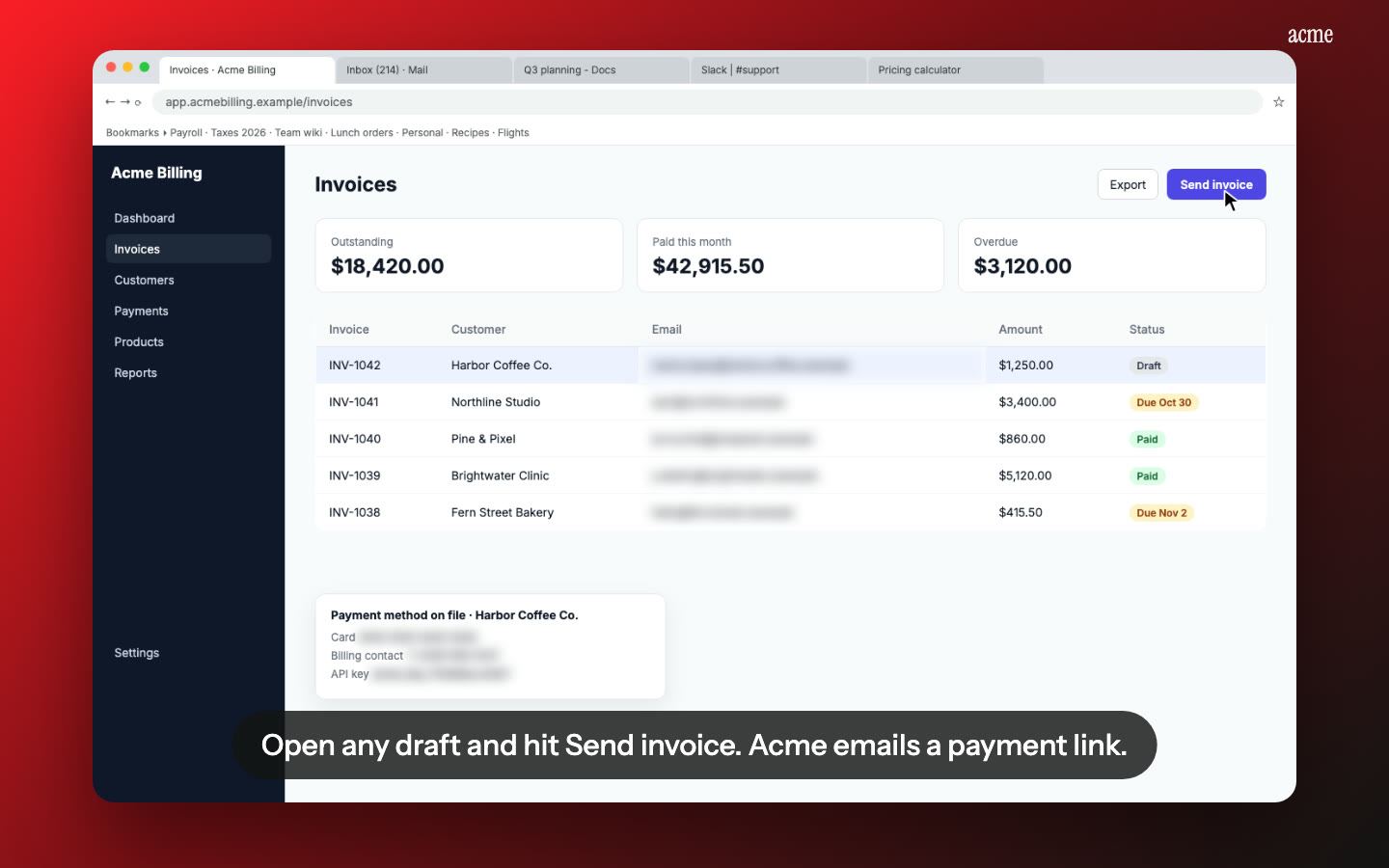
Narration the guidelines ask for. Nook writes one short line per step, from what you said or what's on screen, and reads it with a natural voice. That is the narrative form and voice-over Microsoft recommends, without you recording a take.
Test notes written for you. Every Nook video comes with a step-by-step guide: a heading, a sentence and a screenshot per step. Paste it into your test notes and add the account details. Export it as PDF, Word or Markdown.
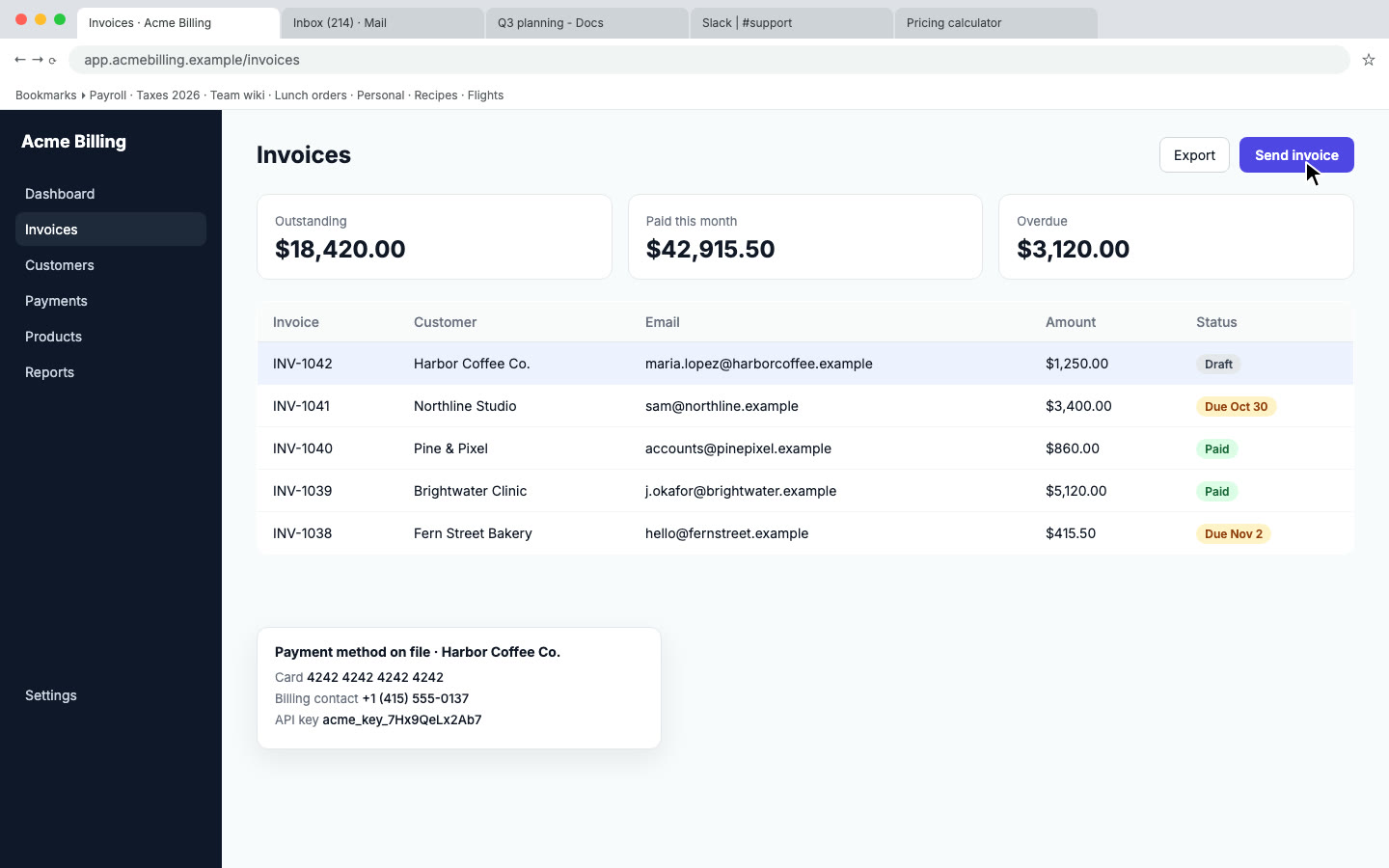
Tenant data stays private. Nook flags emails, phone numbers and keys on screen and blurs them. Check each flag so the app name, the consent prompt and the settings the tester needs remain visible.
Keep it educational. Nook's walkthrough describes what happens on screen. There are no marketing cards unless you add them, which suits the "educate, not promote" rule.
How it works
- Record in your demo tenant with a test account that isn't pre-configured: install the app, go through first-run sign-in, set it up, then use each capability you list in your test notes (tabs, bots, message extensions, meeting features). Use any screen recorder.
- Upload to Nook. It splits the recording into steps, writes the script and the captions. Read them and change anything that's off.
- Download the MP4 for Partner Center. For the listing video, upload the MP4 to YouTube or Vimeo yourself and paste the link in the format Microsoft specifies.
Nook doesn't record and doesn't submit to Partner Center. It works from the recording you already have.
Pricing
Starter is $9 a month for 4 videos, each up to 10 minutes, no watermark, with 3 re-renders per video. A 3 to 5 minute walkthrough fits comfortably. Your first video is free, up to 3 minutes, with a watermark. Submitting to several stores? Pro is $19 a month for 8 videos. See pricing, or compare other platforms on our app review videos page.
Questions
Is the demo video required for Teams Store validation?
Microsoft's submission checklist lists it under the testing instructions you're required to compile, next to test accounts and test notes: "Provide a recording of your app so that Microsoft can fully understand its functionality." The listing video is separate and optional.
How long should the listing video be?
The validation guidelines recommend 60 to 90 seconds for a value video and 3 to 5 minutes for a walkthrough video. A Nook walkthrough's length follows your recording and the narration, so check it before you upload.
Can I use the same video for a SaaS offer linked to my app?
Microsoft's guidelines suggest adding a video of how your app and license management work to help the certification team. Record that flow too, and Nook will narrate it the same way.
Does Nook upload to YouTube or Partner Center?
No. Download the MP4 and upload it yourself. Microsoft also asks you to turn off ads on the YouTube or Vimeo account before you submit the link.
Make your Teams demo video
Upload the recording you already have. Your first video is free. Plans start at $9 a month for 4 videos.
Start free