The short answer
To make a training video for internal software, record your screen while you do the task once, then upload the recording to Nook. Nook splits it into steps, writes a script line for each one, adds an AI voice or tidies your own, and blurs emails and phone numbers on screen. You get a video to share or upload to your LMS, and a written guide with a screenshot for every step.
Why internal software training is hard to keep up
Staff don't choose the tools they use at work. They need to log hours, request leave, file an expense, book a duty trip or update a record, and the screens are often dense and unfamiliar. Vendor training covers the standard product, not your company's setup, your fields or your approval steps.
So someone on the team ends up explaining the same task in calls and chat messages. Making a proper video usually means a screen recorder, a video editor and an afternoon per task. Nook cuts that down to the time it takes to do the task once.
How it works
- Record the task. Use whatever you have: QuickTime, the Windows Snipping Tool, OBS, Zoom or a Loom download. Do one task from start to finish.
- Talk or stay silent. If you talk, Nook uses your words. If you don't, a vision model reads the screen and writes the script.
- Upload the file. MP4, MOV or WebM, up to 600 MB and 10 minutes on paid plans (15 on Business). There's no extension or recorder to install.
- Pick what to make. Choose a Demo video with the How-to kind to show every step in order, or the Welcome kind for the first things a new hire should do. Or choose a walkthrough: your recording narrated step by step with captions and zooms.
- Check the script. Every line is editable. Fix the name of a field, add a note about your company's rule, or cut a step.
- Share it. Send a link, embed it on your intranet, or download the MP4 for your LMS.
Our guide to making a software training video covers what to record and how to plan a set of videos.
Good tasks to record
- Logging hours or submitting a timesheet in an HR portal.
- Finding locations, org units and reporting lines in Workday.
- Creating a purchase request or approving an invoice in SAP or another ERP.
- Raising and updating a ticket in ServiceNow.
- Updating an opportunity or logging a call in Salesforce.
- Completing an assigned course in Cornerstone, on desktop or mobile.
- Requesting a business trip, leave or an expense reimbursement.
- Marking attendance or entering records in a custom internal app.
Short videos of one task each are easier to find and easier to update when the system changes.
What you get from one recording
A training video. Headlines, a voiceover and music over your own clicks, or a walkthrough with captions and zooms on each step. Sizes are 16:9, 9:16 for phones and 1:1.
A written guide. A heading, a short instruction and a screenshot for each step. Export it as PDF, Word or Markdown for Confluence, SharePoint or Notion. It suits people who'd rather read than watch, and it works as a quick reference later. See screen recording to guide.
A click-through demo. Staff can practice the clicks themselves before they try it in the real system.
Other languages. Narration in 15 languages, so a team in another country gets the same video in its own language. Translated versions are on paid plans.
Real employee data on screen
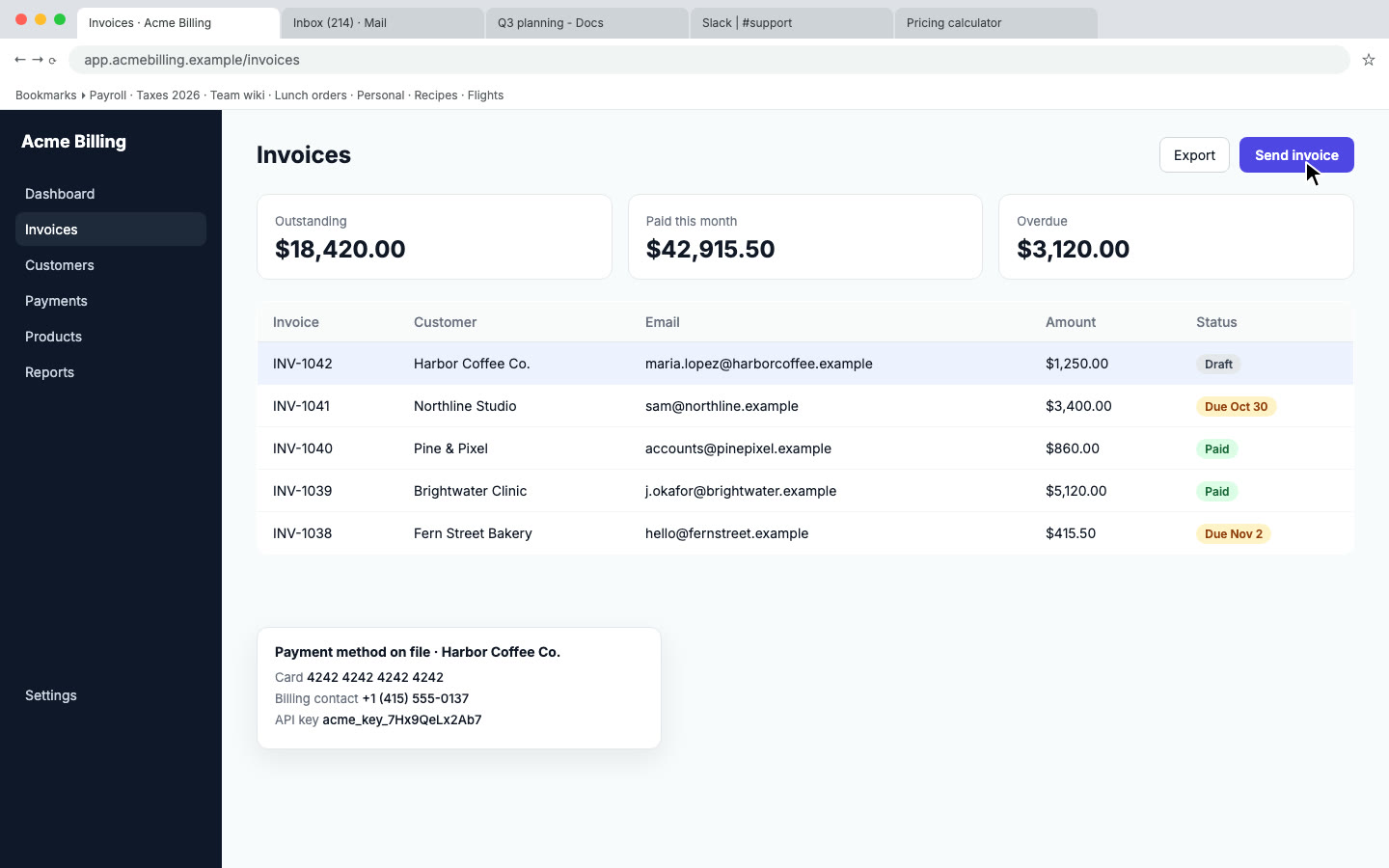
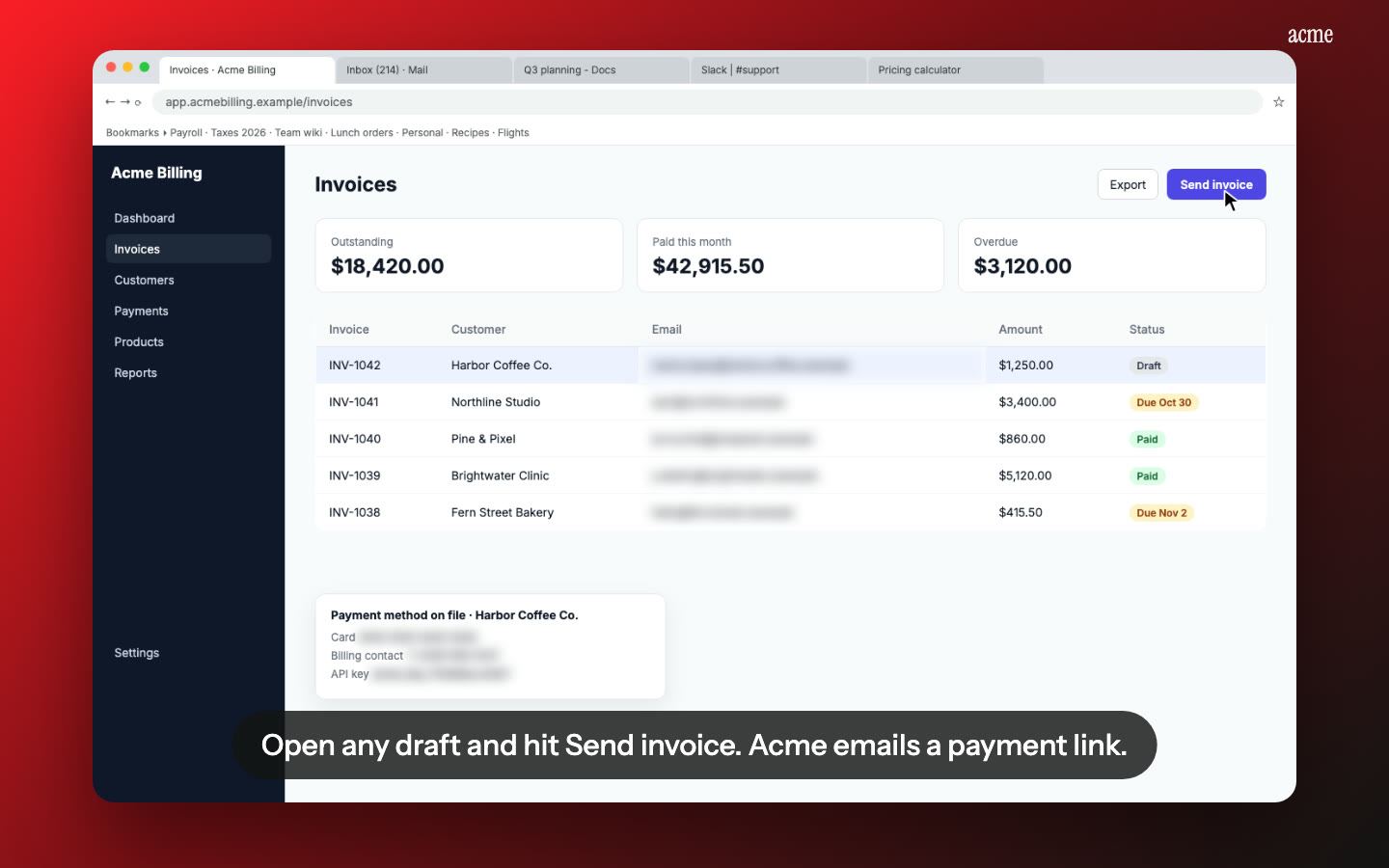
Internal systems are full of real names, emails and phone numbers. Nook finds and blurs emails, phone numbers, card numbers and API keys in the video and the guide. You can check what was blurred and add or remove blurs before rendering. Other text, like names in a table or salary figures, isn't caught automatically, so look through the steps or record in a test environment when you have one.
Share links can have a password and can expire, which helps when a video shows a system only staff should see.
Honest limits
- No SCORM export or LMS integration. Download the MP4 and upload it to your LMS as a video.
- No quizzes. Use your LMS or a form tool if you need to test what people learned.
- It doesn't record. You record with your own tool and upload the file.
- No timeline editor. You edit the script, the steps and the look, not individual frames.
- 10 minutes per video, 15 on Business. Split long processes into a few videos.
Pricing
Your first video is free, up to 3 minutes, with a watermark and a share link. A single video is $4. Starter is $9 a month for 4 videos, Pro is $19 a month for 8, and Business is $49 a month for 16. You pay by videos, not by seats, so it doesn't matter how many employees watch. Prices are 30% lower in many countries, including India and Brazil, and tax is added at checkout. See pricing.
Questions
How do I make a training video for internal software?
Record your screen while you do the task once, using any screen recorder. Upload the file to Nook, check the script it writes, pick a voice and share the video. You also get a written guide with a screenshot for each step.
Can I make Workday or SAP training videos with Nook?
Yes. Nook works from a screen recording, so it works with any system you can show on screen, including Workday, SAP, Salesforce, ServiceNow, Cornerstone and custom internal tools. It doesn't connect to those systems directly.
Can I upload the videos to our LMS?
Yes, as a video file. Download the MP4 and upload it to your LMS. Nook doesn't export SCORM packages or connect to an LMS, and it doesn't make quizzes.
Will it hide employee data in the recording?
Nook blurs emails, phone numbers, card numbers and API keys automatically, and you can check and change what's blurred. Names and other details in tables aren't caught on their own, so review the steps or use a test environment.
Do I need to narrate while recording?
No. If you stay silent, a vision model reads the screen and writes the script. If you talk, Nook uses your words. You can use an AI voice, keep your own voice with the ums and silences cut, or show captions only.
Can I make onboarding videos for new hires?
Yes. The Welcome kind of Demo video covers the first things a new user should do, and the How-to kind shows every step of one task in order. Make one video per task and send new hires the links. For written processes, see SOP videos.
How much does it cost for a whole company?
Nook charges by videos, not seats. The first video is free, a single video is $4, and plans run from $9 a month for 4 videos to $49 a month for 16.
Make a training video
Upload the recording you already have. Your first video is free. Plans start at $9 a month for 4 videos.
Start free