You have the words. A product presentation written for a sales call, a training chapter, the narration for a launch, a pitch. What you don't have is the video, and the usual way to get one is a week of someone's time: record the screen, re-record it when you stumble, cut it, lay a voice over it, fix the places where the voice runs ahead of the picture.
There is a shorter way, and it starts from the script rather than the recording. You cut the script into scenes, give each scene a picture (a screenshot, a photo, a headline, a number, a drawn interface), let a voice read each line over its scene, and the video is made for you. No camera, no screen capture, no timeline. This guide is about doing that well: the pacing, the cuts, matching words to pictures, the voice, and how to handle a presentation that runs ten minutes rather than one.
Short answer
Write the script first and read it aloud with a stopwatch: narration runs at about 140 words a minute, so a 3-minute chapter is about 420 words. Cut the script where the picture should change, one idea per scene, 6 to 20 seconds each, which gives about 10 to 20 scenes a chapter. Give every scene the one thing the sentence is about: the screen where it happens, the number it quotes, the list it reads, or a plain headline when nothing else fits. Leave two or three seconds after the voice stops on any scene people have to read. Use one voice for the whole thing, add captions, and split a long presentation into chapters of 3 to 4 minutes. In Nook you paste the script, it is placed over your scenes, and the video is made in about as long as it runs.
When to start from the script
Most product videos start from a recording because the product is the thing being shown. A script-first video is the right choice when the words carry the video, and the pictures support them:
- A presentation. The sales deck turned into a video that a prospect can watch without you on the call. Your website, your dashboard, a few photographs of the team or the work, numbers.
- A training chapter. Three to five minutes on one part of the product, narrated steadily, with the screens people will see. Often several chapters, in order.
- A launch or announcement. What changed, why it matters, what to do, with the new screens and one or two numbers.
- A pitch. The problem, the product, the proof, the ask, in the order you'd say it to a person.
- Anything in a second language. When the narration was written and translated with care, the video should follow the words, not the other way round.
If instead you want to show someone how to do one task, click by click, record the screen and make a walkthrough from it: the recording is the script. And if you want thirty seconds of motion for the top of a landing page with little or no voice, that is a hero video, a different job.
Step 1: Write the script for the ear, then time it
A script that reads well on paper is often wrong for a voice. Three changes fix most of them.
Shorter sentences. A narrator takes a breath at a full stop. A 40-word sentence has no breath in it, and a listener loses the thread about two-thirds of the way through. Aim for 10 to 18 words. Cut "which" and "that" clauses into their own sentences.
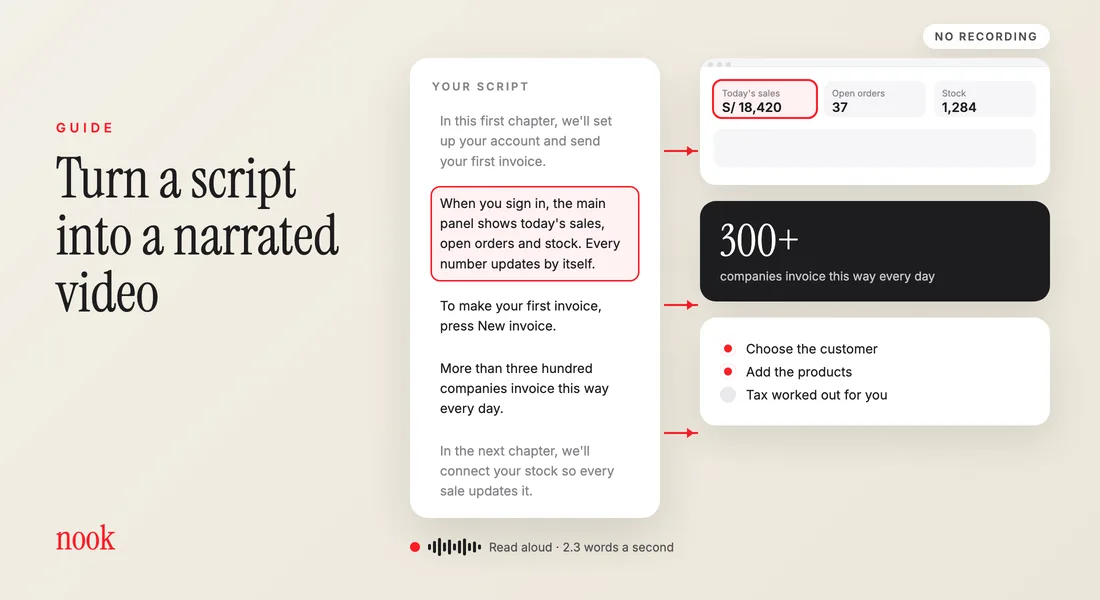
Say what the viewer sees. The picture and the voice should agree. "The panel shows today's sales, open orders and stock, and the numbers update by themselves" works over a screenshot of that panel. "Our platform offers real-time visibility" works over nothing.
One idea per paragraph. Every paragraph in the script is going to become one scene, so write it that way: a paragraph is the sentences that belong to one picture. When a paragraph needs two pictures, it is two paragraphs.
Then time it. Narration at a comfortable pace runs at 130 to 150 words a minute, about 2.3 words a second. That rule turns a word count into a length before anything is made:
| Words | Running time |
|---|---|
| 70 | 30 seconds |
| 140 | 1 minute |
| 420 | 3 minutes |
| 560 | 4 minutes |
| 1,400 | 10 minutes |
Reading it aloud with a timer is still worth doing once. Writers overestimate how fast a voice goes, and the parts that are hard to read aloud are the parts a listener will struggle with too.
For how to write the narration itself, line by line, see how to write a demo video script; the free script generator gives you a first draft from a list of steps.
Step 2: Cut the script into scenes
A scene is one picture and the words read over it. Where the picture should change, the scene changes. Reading through the script and marking those places is the real editing, and it takes ten minutes.
Rules that hold up:
- One idea per scene. When you catch yourself wanting to show two things, cut.
- Six to twenty seconds. Under six seconds the picture flashes past; over twenty the viewer has read everything on it and is waiting. At 2.3 words a second that is 14 to 45 words a scene, a short paragraph.
- A line fits its scene. The voice never runs past the picture it belongs to. Either the scene is long enough for the line, or the line is split.
- Vary the length. A chapter of identical 10-second scenes feels mechanical. A long scene for the important screen, short ones for the headline and the number.
That gives you 10 to 20 scenes for a 3-minute chapter. Fewer and the pictures are holding too long; more and it's hard to follow.
Step 3: Give every scene a picture
Now go through the scene list and write, next to each line, what is on screen. The choice is usually one of these:
| The line says | Show |
|---|---|
| What a screen does | A screenshot of that screen, in a browser or window frame, with the part that matters marked |
| A number | The number, large, counting up, with what it is under it |
| A sequence of steps | A numbered list that ticks through as the voice reaches each step |
| A before and after | Two columns, the old way and the new way |
| What someone said | The quote with their name and role |
| A button and what happens | The button pressed by a cursor, the result sliding in |
| A question the product answers | The question typed into the product, and the answer |
| The company, the team, the place | A photograph |
| A claim with nothing to point at | A plain headline, two short lines, on a solid colour |
The last row matters more than it looks. Not every sentence has a picture, and a headline is better than a screenshot chosen because it was there. "Three hundred Peruvian companies invoice this way every day" wants a big number, not a dashboard.
Use your real screens. A video built from the real product, at the real state, is the one prospects trust and the one your own team will keep. Drawn scenes (the list, the number, the chat, the button) are for the moments the screenshot can't carry.
Step 4: Leave reading time
The single most common fault in a narrated video is the picture changing while someone is still reading it.
The voice takes its time; the eye takes more. When a scene shows a screenshot with text on it, a list, or a table, add two or three seconds after the voice line ends before the next scene. When the scene is a headline or a number, the voice line can end and the scene can end with it.
Two tools help:
- Mark the spot. A circle, a box or a spotlight on the part of the screenshot the sentence is about, so the eye goes straight there instead of reading the whole screen.
- Zoom. For a dense screen, zoom to the region that matters while the line is read. The viewer sees one thing clearly rather than everything small.
If the line is longer than the picture can comfortably hold, that is a sign the scene wants to be two scenes, not that the picture should stay longer.
Step 5: The voice
One voice throughout. Chapters that change voice feel like different videos.
A natural AI voice is now good enough for presentations and training, and it has two practical advantages: it reads the script exactly, and when the script changes the line is re-read in seconds. Pick the voice once, for the language the script is in, and keep it.
Your own voice is better for a pitch, a founder's message or a personal welcome, where who is speaking is part of the point. Record the lines yourself over the scenes, or clone your voice from a short sample so that edits don't mean re-recording.
A presenter in the corner, a face lip-synced to the lines, suits training chapters that run for minutes: it gives the viewer somewhere to look between screens and makes a long narration feel like a person talking. Keep the bubble small and in one corner, not over the content.
Whichever you choose, write the script in the language it will be read in rather than translating the finished video, and put the translated versions through the same process: every sentence placed on its scene.
Step 6: Chapters, not one long video
A 10-minute narrated video is a hard thing to finish. The viewer has no idea where they are in it, and one dull minute loses them. Split it:
- Chapters of 3 to 4 minutes, each on one topic, each starting with a one-line "in this chapter" and ending with a one-line "next".
- Publish them as parts, in order, with their own titles. People finish a 3-minute part they chose far more often than minute seven of ten.
- Join them only when the destination needs one file: a trade-show loop, a single upload. Even then, keep the chapter titles inside the video so the viewer gets a breath between them.
Chapters also keep the work manageable. One chapter at a time can be scripted, built, watched and corrected in an afternoon; a ten-minute video is never quite finished.
Step 7: Captions, music, size
Captions on. Most product video is watched without sound, in a feed, in a browser tab beside something else, on a train. Captions of the voice lines, at the foot of the frame, cost nothing and double the number of people who get the message.
Music under, not over. A quiet track lifts a narrated video and covers the gaps between lines. Keep it well under the voice, and calmer than you'd pick for a 30-second promo.
Wide for presentations and training (16:9, for a page, a slide, a knowledge base). Tall (9:16) only for the social cut-down of a chapter. Make the wide version first; the tall one is a different edit, not a crop.
Your logo in a corner, small, and your brand colour on the drawn scenes, so the chapters look like one product.
A worked example: one chapter, scene by scene
The first chapter of a presentation for an invoicing product, three minutes, about 400 words. The script was written first, in paragraphs, then each paragraph became a scene.
| # | Seconds | On screen | The line |
|---|---|---|---|
| 1 | 6 | Headline: "Chapter 1: Getting started" | In this first chapter, we'll set up your account and send your first invoice. |
| 2 | 12 | Screenshot: the main panel, sales figure marked | When you sign in, the main panel shows today's sales, open orders and stock. Every number updates by itself, with no spreadsheet behind it. |
| 3 | 8 | List: Invoicing, Customers, Stock, Reports | The menu on the left opens the four parts of the product: invoicing, customers, stock and reports. |
| 4 | 7 | Button "New invoice" pressed | To make your first invoice, press New invoice. |
| 5 | 14 | Screenshot: the invoice form, zoomed to the tax line | Choose the customer, add the products, and the tax is worked out for you. Nothing to look up and nothing to type twice. |
| 6 | 9 | Screenshot: the sent invoice, status marked | In under a minute the invoice is issued, sent, and filed with the tax office. |
| 7 | 7 | Big number: 300+ companies | More than three hundred companies invoice this way every day. |
| 8 | 10 | Photo: a customer's shop | Among them is a hardware store in Arequipa that used to spend every Friday afternoon on paperwork. |
| 9 | 12 | Before and after: Friday afternoon / twenty minutes | Now it takes twenty minutes on a Monday morning, and the afternoon is theirs. |
| 10 | 6 | Headline: "Next: stock" | In the next chapter, we'll connect your stock so every sale updates it. |
Ten scenes, 91 seconds of picture for 80 seconds of voice, with the reading time on the screenshots. Twenty of these make a 3-minute chapter.
The mistakes we see most
- Recording first, writing after. The script ends up describing whatever got recorded. Write the words, then find the pictures.
- Reading the screen aloud. The voice says "click the blue Save button in the top right" while the picture shows it. Say what it does, mark where it is.
- A sentence over two pictures. The voice is still finishing the point when the scene changes. One line, one scene.
- No reading time. Screens with text on them cut away the moment the voice stops.
- Every scene the same length. It feels like a slideshow on a timer. Let the important screen hold.
- Screenshots nobody chose. The scene needed a number, a list or a headline, and got the dashboard because it was to hand.
- A different voice per chapter, or a voice that changes when the script is edited.
- One ten-minute file. Chapters of three to four minutes, published as parts.
- No captions. Most viewers have the sound off.
- Treating it as finished. A narrated video from a script is cheap to change: when the screen changes, swap the screenshot; when the words change, the line is re-read. Keep it current.
How to do it in Nook
Nook's video builder is built for exactly this: a video made of scenes, with your pictures and a voice, from a script, with nothing recorded.
- Build the scenes. Add your screenshots and photos, in a window, a browser or a phone frame, with a mark on the spot that matters. Add drawn scenes from the library where a sentence needs a headline, a number counting up, a list ticking through, a before and after, a quote, a button pressed, a question typed and answered. Put them in the script's order. A scene can run up to 20 seconds and a video up to 40 scenes, a little over 13 minutes, so a chapter of several minutes is one video.
- Paste the script. In the Script tab, press Paste my script and paste the whole narration. Nook places each sentence on the scene it is about, in order, without changing a word, and stretches every scene to fit its line. If the script has more than the scenes can hold, the leftover comes back to you to paste onto a scene or two more. Or have the lines written for you from what's on screen, or type them scene by scene; under each line you see how long it takes to say and whether its scene is long enough.
- Choose the voice. A natural voice in the script's language, 15 languages, or your own voice cloned from a two-minute sample, or read the lines yourself over each scene. On the Business plan, a presenter in the corner is lip-synced to every line.
- Look and sound. Your colour and logo, a theme, a music track under the voice, captions on, wide, tall or square. The preview plays as you edit.
- Make it. The video is made in about as long as it runs: a 3-minute chapter in 3 to 4 minutes. Editing a finished video and making it again costs nothing on a plan, so when a screen changes you swap the picture and press Make again.
Building, editing and previewing are free. Making the final video takes a plan, from $9 a month. Start in the video builder.
Have a screen recording as well as a script? Nook can lay the script over the recording instead: see adding an AI voiceover to a screen recording.
Questions
Can AI turn a script into a video?
Yes, as long as the video is made of scenes rather than footage. The script is cut into lines, each line is placed on a scene (a screenshot, a photo, a number, a list, a drawn interface), a voice reads each line over its scene, and the video is drawn from that. What AI doesn't do well is invent the pictures: the video is as good as the screens and photos you give it.
How many words is a 3-minute video?
About 420 at a comfortable narration pace of 140 words a minute. A 5-minute chapter is about 700 words, and a 10-minute presentation about 1,400. Read it aloud with a timer once; most people write for a faster voice than anyone speaks.
How long should each scene be?
Six to twenty seconds. Under six the picture flashes past; over twenty the viewer has read everything and is waiting. A scene holds the sentences about one picture, 14 to 45 words, plus two or three seconds of reading time when there's text on screen.
Should I use real screenshots or illustrations?
Real screenshots of the product for anything about the product, with the relevant spot marked and dense screens zoomed. Drawn scenes for what a screenshot can't carry: a number, a list of steps, a before and after, a quote, a plain headline. A video made of real screens is the one people trust.
Is a 10-minute product video too long?
As one file, usually. Split it into chapters of three to four minutes, each on one topic, and publish them as parts in order. People finish a short part they chose far more often than the middle of a long video.
Can I make the same video in another language?
Yes. Translate the script, not the video, and put the translated script through the same placement so every sentence lands on its scene. The voice is picked per language. In Nook a finished built video can be translated with the voice and captions redone.
What's the difference between this and a hero video?
A hero video is 30 to 60 seconds of motion at the top of a landing page, with little or no voice, built to be understood in a glance and looped. A narrated video from a script is minutes long, carried by the words, and built to be watched through: a presentation, a training chapter, a pitch. Nook's builder makes both, from the same library of scenes.
Can I change the video after it's made?
That is the point of starting from a script. Swap a screenshot when the screen changes, edit a line and have it re-read, add a scene when the product gains a feature, and make the video again. On a plan, making it again costs nothing.
Paste your script, get the video
Nook's video builder places your script over scenes of your screenshots, photos, numbers and drawn interfaces, reads it in a natural voice in 15 languages, and makes the video. Drafting is free.
Open the video builder