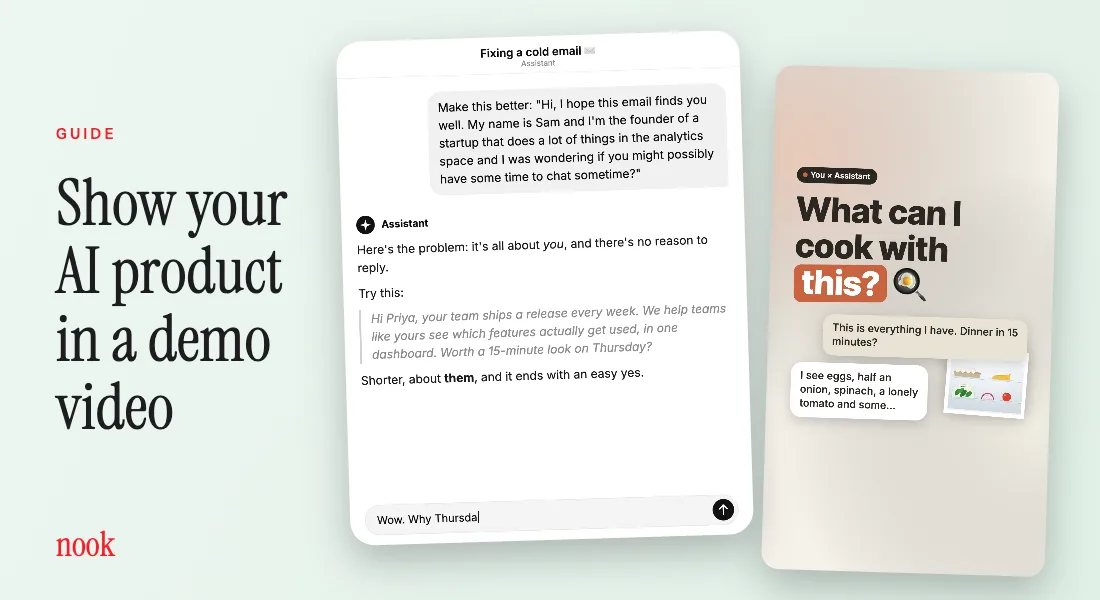
If your product has an AI assistant in it, the demo is the conversation. Visitors don't care that you use a large language model. They care what happens when they ask it something, and a feature list can't show that. A short video of the assistant answering a real question, in your interface, does.
This guide is for founders, product marketers and developer relations people who need to show an AI feature: a support bot, a writing assistant, an in-app copilot, an agent that does tasks. It covers choosing the conversation, writing it, picking the right kind of video, and the details that make it believable.
Short answer
Pick one real question your users ask, and the best real answer your assistant gives to it. Edit the exchange like a script: one clear question, an answer short enough to read, one follow-up that shows it understood. If the conversation is the whole story, make a chat video that plays it out message by message (Nook's free chat to video tool does this in your browser). If the assistant also changes things on screen, like filling a form or moving data, make a screen recording demo that shows the product around the chat. Keep it under 60 seconds, and slow enough to read.
Chat video or product video?
There are two kinds of AI demo video, and they suit different features.
| Chat video | Screen recording demo | |
|---|---|---|
| Shows | The conversation itself, typed out | Your whole product, with the assistant in it |
| Best for | Chatbots, writing and research assistants, support bots | Copilots and agents that act inside the app |
| Made from | The text of a conversation | A recording of you using the product |
| Formats | Vertical, square or wide | Usually wide, sometimes vertical |
| Where it works | Social posts, landing page heroes, launch posts | Landing pages, sales decks, help centre, app reviews |
A chat video is quicker to make and easier to read on a phone, because there's nothing on screen except the conversation. A product demo is more convincing when the value is in what the assistant does, not what it says. Many teams use both: a chat video for social posts and the launch announcement, and a product demo video for the landing page and sales.
Step 1: Choose the conversation
The conversation is the demo. Choosing it is most of the work.
- Start from a real user question. Pull the top questions from your support inbox, sales calls or analytics. A question people actually ask beats one you invented.
- Pick an answer that's specific. "Here are some ideas" is forgettable. An answer with the user's own numbers, names or files shows the assistant understood the context.
- Show the follow-up. One question and answer looks like search. A follow-up ("make it shorter", "now for Spanish speakers", "what about last month?") shows it's a conversation that keeps context.
- Show the edge, not the average. Pick the case that makes people think "it can do that?": a messy question it handles cleanly, a document it reads, a calculation it gets right.
- Avoid trick questions. Showing a model being clever about something irrelevant to your product wins attention but not customers.
Step 2: Write it like a script
Edit the real transcript. You're not faking the answer. You're cutting what slows it down.
- Cut greetings and pleasantries on both sides.
- Shorten the answer to what fits on one or two phone screens. Delete the closing summary and the "let me know if you'd like..." line.
- Keep formatting that helps. Lists, bold key numbers and a small table read well in video. Long paragraphs don't.
- Use realistic sample data. Fake but believable names, companies and numbers. "Acme" and "John Doe" look careless.
- Read it at the speed it will play. If you can't follow it, trim more.
Don't make the assistant say something it won't say for a real user. People will try the same question after watching, and a demo that doesn't hold up costs more trust than it earned.
Step 3: Get the pace right
Most AI demo videos fail on pace. The answer streams in at model speed, which is far faster than anyone reads, and the viewer gives up.
- Slow the typing down. Around 30 characters a second is comfortable on a phone. Slower for dense answers.
- Pause after each reply. A second or two lets people finish reading before the next message starts.
- Cap long answers. If one answer is long, speed only that one up, or cut it.
- Show the thinking moment. A brief "thinking" indicator before the reply makes it feel real, but keep it to a second or two.
Step 4: Pick the format and the look
- Landing page hero: 16:9 or 4:5, silent, looping, under 30 seconds. Match your product's colours.
- Launch post on X or LinkedIn: 1:1 or 4:5, 30 to 60 seconds, with captions or text that reads without sound.
- Reels, TikTok and Shorts: 9:16, with the chat clear of the apps' buttons and captions. See our guide to safe zones.
- Sales deck: 16:9, one exchange per slide, autoplaying.
Make the chat look like your product: your assistant's name and colours, not a generic grey bubble. If your assistant lives in a side panel, a chat video that mimics that panel ties the video back to the product.
Step 5: Add the finishing touches
- A title card or cover that states the outcome ("Answers billing questions in 3 seconds"), not the feature name.
- Quiet music with no lyrics. Most viewers watch muted, so the video must work without it.
- A clear end. Finish on the answer that matters, then a short line with what to do next: try it, book a demo, join the waitlist.
Common mistakes
- Showing the prompt engineering. Viewers don't need the system prompt. They need the result.
- Too many questions. Three exchanges is plenty. Make more videos instead of a longer one.
- Tiny text. A chat video recorded from a desktop browser is unreadable on a phone. Use a tool that renders the chat at video resolution, or zoom in.
- Model speed. Real-time streaming is too fast to read.
- Hiding that it's AI. Saying so up front is expected and builds trust.
When to use Nook
Nook makes both kinds of video. For a conversation on its own, the chat to video tool is free and runs in your browser. When the assistant works inside your product, record your screen while you use it, upload the recording to Nook, and it adds the script, voiceover, zooms on each click and captions, plus a written guide.
FAQ
How long should an AI chatbot demo video be?
Under 60 seconds for social posts and landing pages, and often under 30 for a looping hero video. One question, one answer and one follow-up is usually enough.
Should I use a real conversation or write one?
Start from a real conversation and edit it for length and privacy. Don't make the assistant say something it wouldn't say to a real user. People will try the same question.
How do I make the answer readable in a video?
Slow the typing to about 30 characters a second, pause after each reply, cut long paragraphs and keep lists and bold numbers. Render the chat at video resolution rather than screen-recording a small browser window.
What format should a chatbot demo video be?
9:16 for Reels, TikTok and Shorts, 1:1 or 4:5 for LinkedIn and X, and 16:9 for landing pages and decks. Export H.264 MP4 so it plays everywhere.
Can I show my own chatbot's branding?
Yes. Set the assistant's name, choose colours close to your product, and use a cover with your headline. For your full interface around the chat, record a screen recording demo instead.
Make a chat demo in a few minutes
Paste a real conversation with your assistant and export it as an MP4 for your landing page, a launch post or a sales deck. Free, no sign-up.
Open the chat video maker